UI5 – sap.m.table vs. sap.ui.table

Well, this one caused me some headaches for a while.  When I initially started playing around with the dynamic table, I did everything with sap.ui.table.  It looked fine, but not nearly as nice as the template very looked.  I wasn’t paying attention that the template created me a sap.m.table, the newer version.  let me start by telling you my goal.  I wanted to create a worklist, with a set of dynamic columns.  So, based on a configuration table that gets sent into the application, it will define what columns, and in what sequence the table will display them.  In addition, it needed to be multiple selection, be responsive, and be scrolling horizontal, since it could have many more columns than will fit even on a desktop window.

sap.ui.table was able to accomplish all of this.  The problem came in when I started to add a toolbar to the table.  Things just never worked out quite the way I wanted.  This table type allowed me to manually set the width of each column, and when looking at it, I could double click the column to auto set the correct width.  This was a pain in my butt, but not the end of the world.  Here’s the outline of making a table dynamic with sap.ui.table

if you want a toolbar, you need to make some buttons,

var oButtSettings = new sap.ui.commons.Button({… });

then make the toolbar itself:

var oTool = new sap.ui.commons.Toolbar({ …  });

next, make the table:

var oNotTab = new sap.ui.table.Table({ … });

assign the toolbar to the table:
oNotTab.setToolbar(oTool);

create the columns for the table and assign the cell:

oNotTab.addColumn(new sap.ui.table.Column({
autoResizable: true,
width: “auto”,
label: new sap.ui.commons.Label({
text: oModel[i].ShortDescr
}),
template: new sap.ui.commons.TextView({
text: val
})
}));

Assign the model with the data to the table (make sure it’s a JSON model) and then bind the rows.

oNotTab.setModel(oModelNot);
oNotTab.bindRows(“/”);

I started to go down the path of finding a way to do this in the background, when I noticed that sap.m.table.  So, I commented out everything I did with sap.ui.table, and replicated it with sap.m.table.  The results were instantly nicer looking, but this version of the table does not have a horizantal scrolling feature.  (I’ll talk about how to overcome that tomorrow).  What I liked about the sap.m.table was the ability to click a line and go directly into the detail, while still allowing me to select multiple lines for other button presses.  The coding is completely different in terms of the elements needed to make a table.

again, make some buttons, but be sure to use sap.m…

var oButtRefresh = new sap.m.Button({…});

make the toolbar

var oTool = new sap.m.Toolbar({…});

make the table, if you have a lot of columns, you may consider fixedLayout: false, but that will open up some new challenges…  I’ll talk about how to handle this soon.

var oNotTab = new sap.m.Table({…});

make the column item list:
var colItems = new sap.m.ColumnListItem(“colItems”, {…});

set the toolbar:

oNotTab.setHeaderToolbar(oTool);

bind the items tot he col item list

oNotTab.bindAggregation(“items”, “/”, colItems);

add columns and cells to the list
oNotTab.addColumn(new sap.m.Column({
autoResizable: true,
width: “auto”,
demandPopin: true,
header: new sap.m.Label({
text: oModel[i].ShortDescr
}),
}));

var txtNAME = new sap.m.Text(oModel[i].GwField, {
text: {
path: oModel[i].GwField,
formatter: formatter.leadZero
}
});
colItems.addCell(txtNAME);
}

set the model to display in your table.

oNotTab.setModel(oModelNot);
UI5 – Cleaning off Leading Zeros

Well, I’m back in UI5 world lately, and my hurdle today was to get rid of a bunch of leading zeros from my table worklist.  I wanted a way to clean all my text records within the table.  With a little help from google, here’s what I found.

I created a formatter function:

leadZero : function (sValue) {
sValue = sValue.replace(/^0+/, “”);
return sValue;
}

I’m no expert, but the code inside of the replace statement works great 🙂

then, I called it within my addcell method.

var txtNAME = new sap.m.Text(Field, {
text: {
path: Field,
formatter: formatter.leadZero
}
});
colItems.addCell(txtNAME);

Notice, in my example: path does NOT have the curly brackets {}

Hope this might help,

UI5 – Calling methods within a function

Well, I’ve been trying to spend a little free time working in UI5 again.  I recently ran into an issue that stumped me for a while.  I created a worklist application using the template and everything worked great, it connected to my service, I could even add some buttons and features.  Then comes the fun part.  I wanted to add the dynamic features into my table.  Well, for some reason when you code up a table in the xml view everything works great, but when you create it within the controller, you can’t just call the method.  Special thanks to SCN and this blog post to finally get me over the hump.

I defined a button and originally it looked like this:

var oButtRefresh = new sap.m.Button({
id: “BtRefresh”,
type: “Transparent”,
press: “onRefresh”,
icon: “sap-icon://refresh”
});

However, when I would push the button, I’d get errors.  I tried with quotes, without quotes, with (), without ().  All to no avail.  The trick that I needed to do, was first:  at the top of the onInit method, I added the following line:

self = this;

then I changed my button to look like this:

var oButtRefresh = new sap.m.Button({
id: “BtRefresh”,
type: “Transparent”,
press: function() {
self.onRefresh();
},
icon: “sap-icon://refresh”
});

What I came to realize is that “this” inside of a function no longer sees the original controller.  Even though it works fine from the XML version, when you build it in the controller, you need to be very aware of your “context”.  In this case, I needed to give it a specific variable that wouldn’t change based on where it was called from.    Hope this can save you some time in your UI5 adventure.

Thanks for reading,

SM – Configuring the Equipment Category – Serial Number Profile

Now, we get to a really piece.  The serial number profile.  Without a doubt, one of my favorite areas.

IMG->Plant Maintenance and Customer Service->Master Data in Plant Maintenance and Customer Service->Technical Objects->Serial Number Management->Define Serial Number Profiles

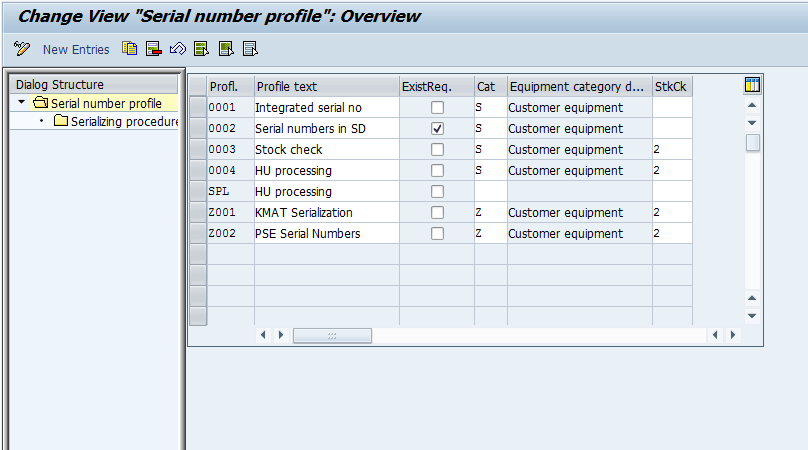
Serial Number Profile 01

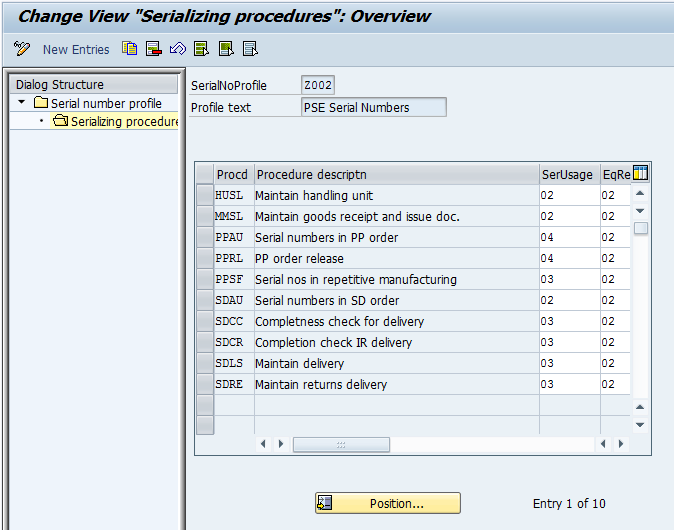
Like always, I suggest making your own profile, I’m going to show you the Z002 profile that I created.  You’ll notice on this first screen there are several fields that control the functions.

  • Description – We will call this self explanatory.
  • – If you check this, it means that you must first create the equipment record before it can be used.  If you don’t check this box, the system will generate the equipment record automatically.
  • Cat – equipment category that will be generated.
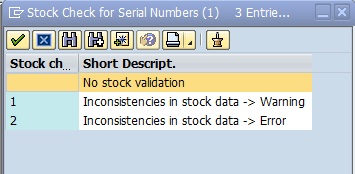
  • StkChk (or stock check).

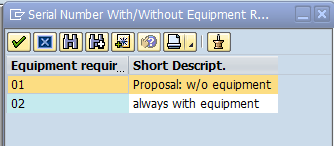
Serial Number Profile 02

You’ll see that you have a few options of how the stock can be checked.  If it’s blank, the serial number is not validated in inventory, if it’s 1, it warns you, if it’s 2, then it’s required that the serial number be used for inventory and be checked before movements can occur.

Next we move onto the details of the serial number profile.

Serial Number Profile 03

You’ll notice that there are only 3 fields that control this very powerful piece of configuration.  First is the procedure.

Serial Number Profile 04

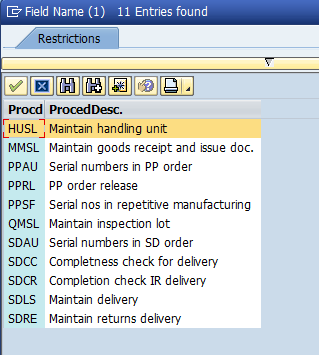
Here are some notes on the commonly used procedures.

  • SDAU – This procedure makes possible the use of serial numbers in sales orders, inquiries and quotations.
  • SDLS – This procedure makes possible the assignment of serial numbers for deliveries.
  • SDCC – This procedure makes possible the assignment of serial numbers when performing completeness checks for deliveries. This checks for the serial number upon Goods Issue
  • SDRE – This operation makes possible the assignment of serial numbers for returns deliveries.
  • SDCR – This procedure makes possible the assignment of serial numbers when performing completeness checks for returns deliveries. This checks for the serial number upon Goods Reciept
  • PPAU – makes possible the use of serial numbers in production and refurbishment orders and defines how they are assigned
  • PPRL – makes possible the assignment of serial numbers when production and refurbishment orders are released. If serial number requirement exists and no or not all serial numbers have been assigned, the order cannot be released

Here is the complete list of procedures that you can assign to your serial number profile.  If any of these are included in the profile then it means that serials either can or must be entered for the transaction.  You’ll notice there are a lot options.  Be sure to include each of these procedures that you want to include serial numbers.

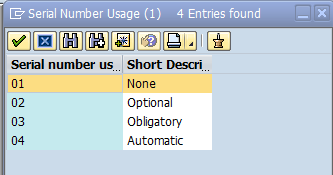
The remaining 2 fields control how the procedure behaves.

Serial Number Profile 05

The usage determines if it’s none, optional, obligatory or automatic.  This field is pretty self explanatory, but that doesn’t make it any less powerful.

Finally the last field:

Serial Number Profile 06

This last value determines if it’s just a serial number record (01) or if it’s an equipment record (02).  I’m a fan of the equipment record because it contains additional views.  You never know when you might need the info.

The last piece is to assign this profile to a material number (sales and Distribution: Plant Data).  Once that happens, all the transactions will start to behave based on this profile.

thanks for reading,

SM – Equipment Category – Assign Partner Determination

I wanted to keep going with the different pieces of configuring the equipment category.

Assign Partner Determination Procedure to Equipment Category *

IMG->Plant Maintenance and Customer Service->Master Data in Plant Maintenance and Customer Service->Technical Objects->Equipment->Assign Partner Determination Procedure to Equipment Category

tech obj - equip cat 07

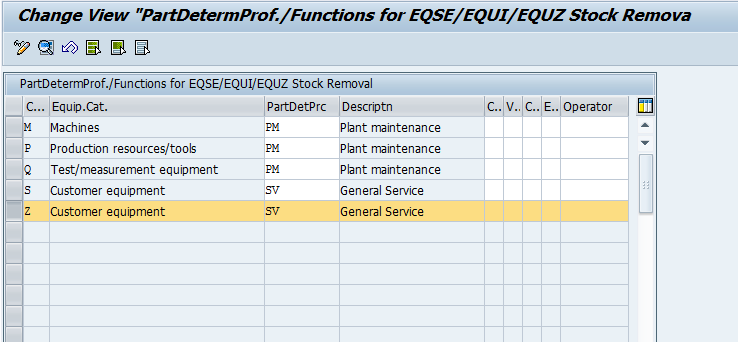
We will drill into the details to explain what can happen here.

tech obj - equip cat 08

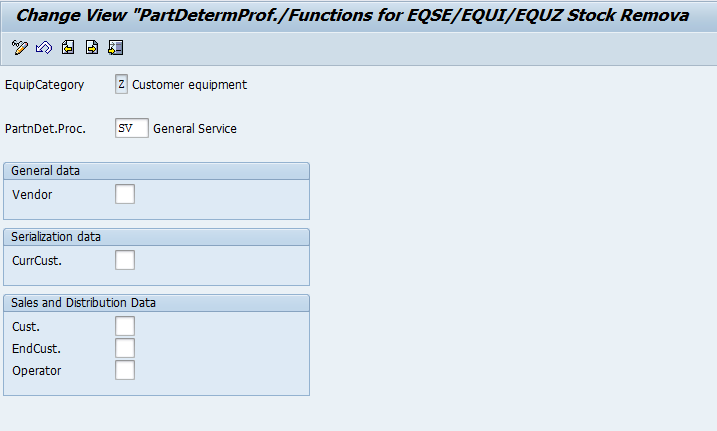
Partner Determination Procedure:  this is very straightforward.  Enter in the appropriate partner procedure that should have been defined already.
Vendor:  You only need to populate this if you plan on serializing your vendor’s equipment.  Be sure the partner type you select is defined as unique in the profile.
CurrCust.:  This is the current customer for the serial number.
Cust.: The partner function for the customer within the equipment master.  Be sure the partner type you select is defined as unique in the profile
EndCust.: The partner function for the End User within the equipment master.  Be sure the partner type you select is defined as unique in the profile
Operator: The partner function for the operator within the equipment master.  Be sure the partner type you select is defined as unique in the profile.


thanks for reading,

Service Management – Configuring the Equipment Category – Define Number Range

This is another short and sweet post.

Define Number Ranges *

IMG->Plant Maintenance and Customer Service->Master Data in Plant Maintenance and Customer Service->Technical Objects->Equipment->Equipment Categories->Define Number Ranges

tech obj - equip cat 05

Following the same pattern as all other number ranges.

tech obj - equip cat 06

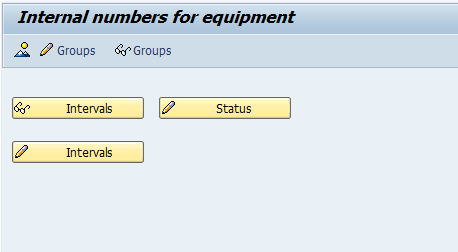
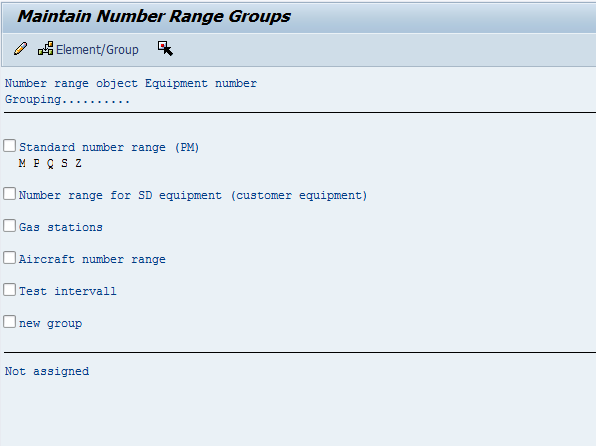
Here you can see the number range that each equipment category is assigned.

Thanks for reading,

Service Management – Configuring the equipment category (2)

Today I wanted to continue talking about configuring the equipment record.  This is a short one, but no less important.

Define Additional Business Views for Equipment Categories *

IMG->Plant Maintenance and Customer Service->Master Data in Plant Maintenance and Customer Service->Technical Objects->Equipment->Equipment Categories->Define Additional Business Views for Equipment Categories

tech obj - equip cat 04

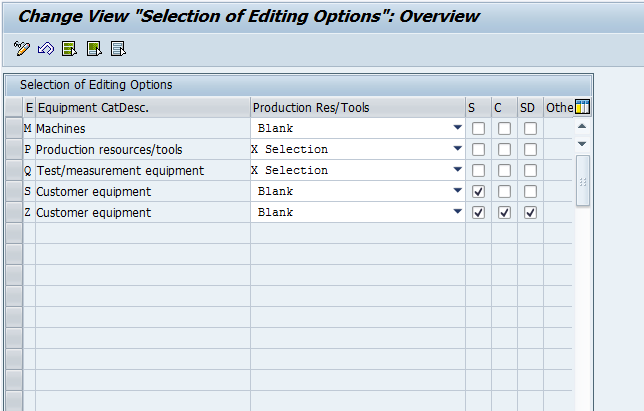
Here is the configuration that allows for advanced selection of views.

  • Production Res/Tools
  • Sales Equipment – this will provide the sales data tab for the equipment
  • Configuration Supported – if you use Variant Configuration, you will want to activate this view
  • Serial Data When Maintaining Equipment
  • Other Data Active

Like everything, don’t activate anything you won’t be using.  The more you activate and leave blank, the more you will train your user to ignore things.

thanks for reading,

Service Management – Configuring the Equipment Category

Like my last post, I wanted to continue talking about some configuration within SM.  In fact, this section again is one of the fundamental building blocks of service management.  It revolves around the equipment category.  Without the equipment record (or you could use functional location or serial number), service loses a lot of it benefits.  Let’s get into the meat of it.

Maintain Equipment Categories

tech obj - equip cat 01

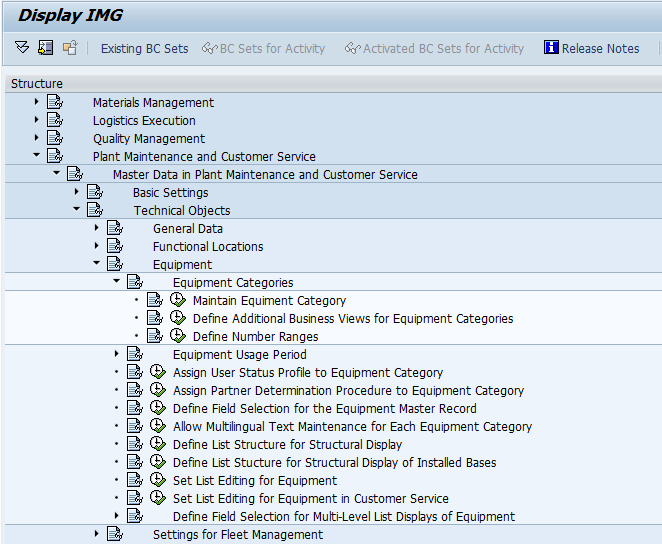
IMG->Plant Maintenance and Customer Service->Master Data in Plant Maintenance and Customer Service->Technical Objects->Equipment->Equipment Categories->Maintain Equipment Categories

tech obj - equip cat 02

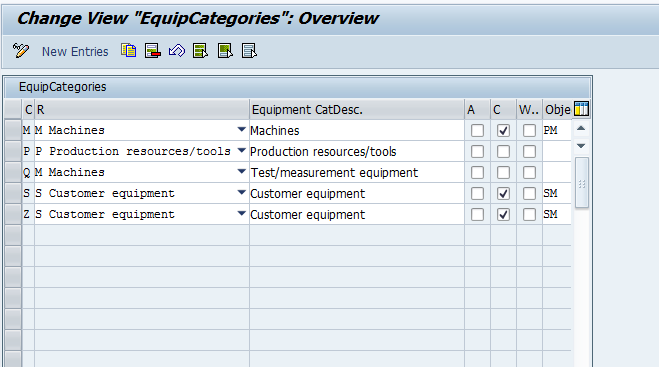
For each equipment type you have the following settings you can apply:

  • No Alpha-numeric Equipment Numbers
  • Indicator showing equipment category with change documents – I highly encourage this to always be checked
  • Indicator: Generate Event for Workflow – Should workflow events be generated
  • Parameter ID Object Info– this is from the object information key. For more information see the Advanced Configuration Guide.
  • View profile for tab index Customizing – Use this to determine what profile should be used.
  • Keep construction type and material number synchronous
    • tech obj - equip cat 03
  • Equipment Type with Change Documents During Creation – I highly encourage this to always be checked.

I have my general settings I tend to apply to the equipment, but as always, be flexible based on the business needs.

Thanks for reading,

Setting the View Profile for a Technical Object

Today, I wanted to get a little more technical.  It’s been a while since I had a chance to go over some configuration, so I wanted to start at the top of everything.  The equipment record.  For those of you doing this for a while, I’m sure this is either old hat to you… or you did it so long ago, you may have forgotten this is there 🙂  Until I started writing my first book, I only had a vague recollection.  So, why is this step important?

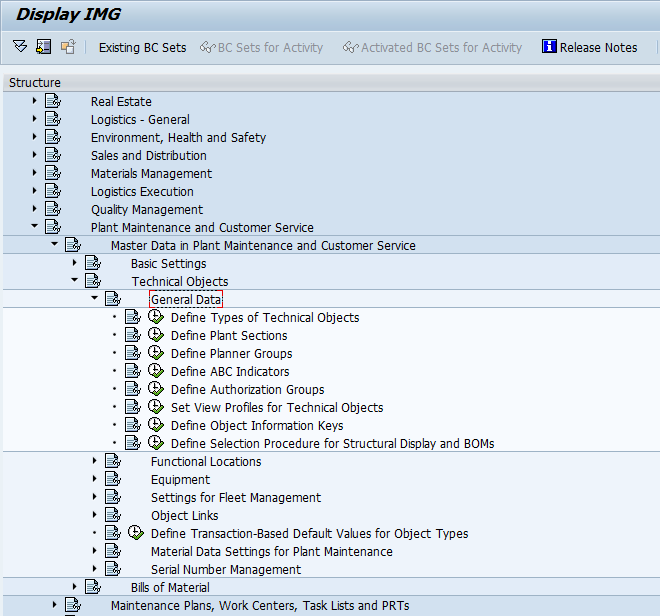
First off, where do you find this in configuration?
tech obj - set view profile 01

IMG->Plant Maintenance and Customer Service->Master Data in Plant Maintenance and
Customer Service->Technical Objects->General Data->Set View Profiles for Technical
Objects

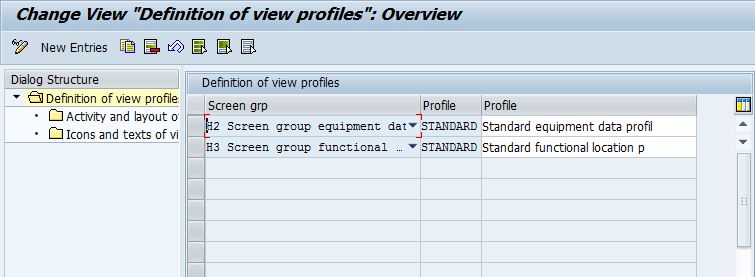
tech obj - set view profile 02
Now we arrive at a very powerful portion of configuration. This screen is
what allows you to manipulate what your equipment master screens will look like.
This screen will allow you to create your own profile, and set screens that you want
shown. Here’s how.

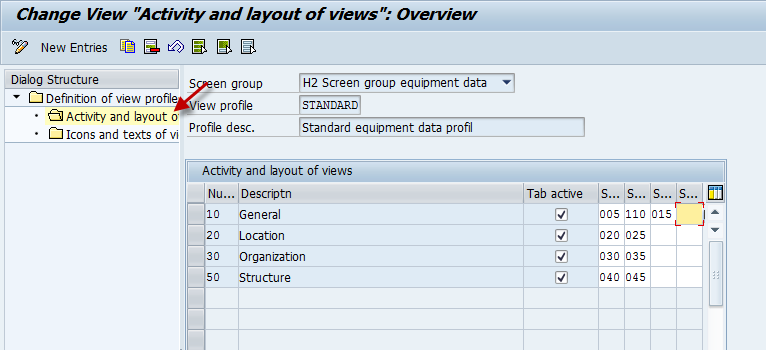
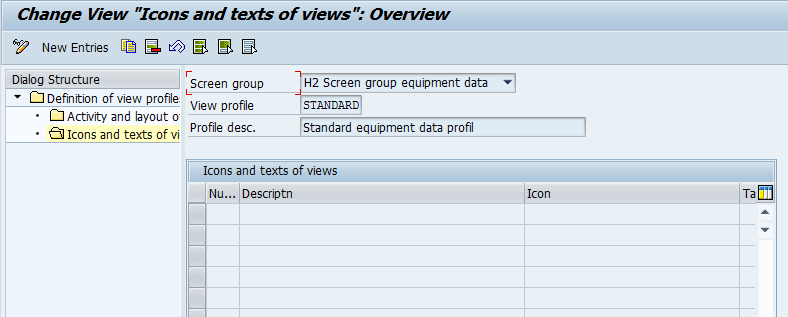
tech obj - set view profile 03
Once you select the Activity and Layout, you now define what tabs will be shown, and
more importantly, what fields will be visible on each tab. I highly encourage you to
always include 110 for warranty.

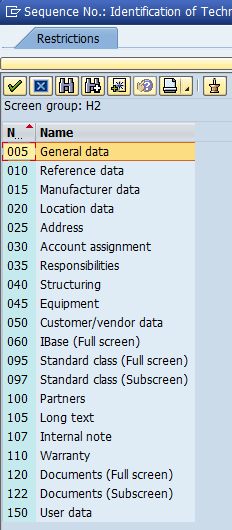
tech obj - set view profile 04
Here is the entire list of screens that are available. Obviously, you will need to
structure what best fits your business, but I encourage you display all of the different
screens, to make sure you know your options and see what’s available.  I think I might do another small book in the future to show all the different field options for the equipment record (much like my book on service notifications.)

tech obj - set view profile 05
This last portion is not something I typically use, but like the notification, you have
the option to add icons to each of the tabs.

That’s all for today.  I’m thinking of doing more posts like this in the future.  Let me know if this is something you like.

thanks for reading,

Closing the Service Notification

One of the things I struggle with in the service process is how challenging it can be to close a service notification.  If you deal with in-house repairs, you know what I’m talking about.  In order to close a notification you must first make sure that all the tasks/activities have been close or cancelled, then you can complete the notification.  Intuitively, this makes sense.  You need to make sure all the steps have been completed before you mark it as closed.

The problem comes in when trying to figure out when to close something.  This is easy if you control all the steps of the notification.  Like if it is a simple customer call or followup there are no other groups involved.  You know when you finished you job, so mark it as complete.  But happens when you can’t complete it until customer service and the service shop have done their steps.  How do you know???  Inevitably, this is why so many companies do NOT use IW58 (notification list) to see the open notifications.  There is often so much junk in there, that it’s more trouble than it is worth to clean it up.

What about the nice little check mark that SAP that lets you close a notification when you Technically complete the service order?  Well, this works great if you are dealing with an order created directly from a notification.  However, if you use standard SM with a repair sales order, then this check mark does nothing for you.

This combination drove me mad.  I guess that’s why I added this feature to Proximity, so when you technically complete a service order, it will go through and close the notification.  it would finally allow you to start using the Notification List to see what is truly open, and could use the Completed Status of the notification for reporting as well.

Thanks for reading,

Posts navigation

1 2 3 17 18 19 20 21 22 23 97 98 99
Scroll to top