Variant Configuration – CWG – The Group in the know

Since, I recently attended  (and even presented at) the CWG conference in Marco Island, I figured this would be a good time to let you know about the group.  The CWG, or Configurator WorkGroup, is THE group if you do anything with Variant Configuration.  This group focuses on variant configuration, configure to order, engineer to order, and pretty much anything that has to do with being able to dynamically configure a product based on a set of rules.

http://configuration-workgroup.com/

If you’re not part of the CWG, I highly encourage you to get registered.  It’s free, and without a doubt, it has the most complete forum of VC related questions.  If you can’t find an answer here, make a post and it’s likely someone will have an idea that can solve your problem.

About my only complaint with the conference is that it tends to focuses heavily on the IPC (internet pricing and configuration), which is the web based/CRM based version of the variant configurator.  That’s not a bad thing, but there are a lot of us that care about the ERP based engine.  The conference this time around actually was good, because there was nearly a day of ETO/Specials processing in VC.  All of presentations are online from the past 10 years or so.

short story, I encourage you to involved… or check it out if you haven’t been there in a while…

good luck

Variant Configuration – Keep BOM Dependencies Simple

Having just gone to the CWG (configurator workgroup) for the first time in many years, I was reminded of my most famous story.  My friend Barry Scott Walton even told the story in his presentation.  He was nice enough to remove the names, to protect the guilty.  Some of you probably even remember this story…  It’s not the peanut butter piehl story, but perhaps I’ll share that one too someday…  This was the story of how Mike Piehl shut down MRP because I used very complicated BOM dependencies.

This was back when I worked for ADC Telecommunications and there was a mad scramble to get all of our CTO product lines converted onto to SAP before the dreaded Y2K.  Well, I was frantically working on product lines, and of course pushing the envelope, because no one ever said not to.  ha ha ha.  It all started on Wed.  I still remember grumblings of MRP being really slow, and wondering if I had done anything.  At the time, I couldn’t think of anything I did…  thursday came, the same issues were still occurring.  Then Friday, it became critical.  MRP hadn’t finished in 3 days, and no one seemed to know why.  After lots of digging, working with planning, IT, and even calling SAP’s platinum hotline, we narrowed down the issue.  We had created about 30 material variants and added a forecast to them.  In a normal world, this wouldn’t have been an issue.  But in my design, I used every tool I could in the BOM to make things work.  Well, my design was spot on.  The problem, which Barry later explained to me, was that MRP doesn’t read complex dependencies in the Bill of Material well.  And when I had a bunch of material variants, all with these complex rules, and then it read them over and over and over (because of the forecast)…  well, let’s just say, I become famous.

As soon as Barry explained the MRP issue (which in my defense was never documented anywhere in SAP), I quickly found a work around to get me by until I could rework all of the selection conditions.  I moved my variant table to a database table.  Now, I do not recommend this approach because you lose the tracability, but we had to do something quickly, and this gave us back the performance to get MRP running again (and still forecast those 30 parts).

The work took significantly longer, because I pulled all of the complex logic out of the selection condition, and moved it to the configuration profile.  This meant more characteristics at the top level, but the trade-off was well worth it.

To this day, I encourage all of my clients to keep it REALLY simple in the BOM.  SAP has done better in adapting MRP to handle variant configuration rules better.  But, in my opinion, you want the configuration profile to do all of the heavy lifting anyway, so this approach won’t steer you wrong.

Anway, learn from my experience…  Keep your BOM rules simple…  don’t add tables, don’t do complicated calculations…  just do simple assignments.  You’ll thank me later =)

Mike

Service Order Document Flow – Configuration

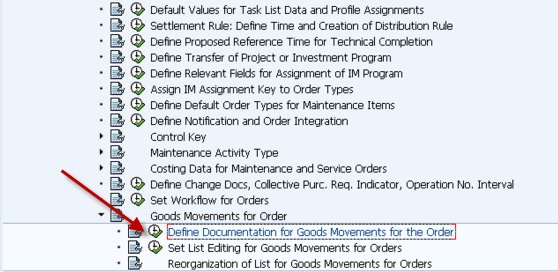
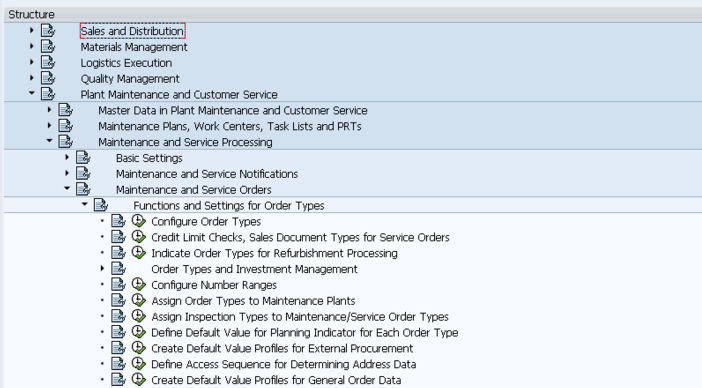
In a recent post, I talked about the document flow functionality.  One of the things I wanted to cover is how to turn on the service order document flow.  In the sales side, all of this information is turned automatically.  In SM, you need to manually turn on the pieces you want.  My recommendation is to turn all of these items.

First of all, this is where you go in configuration

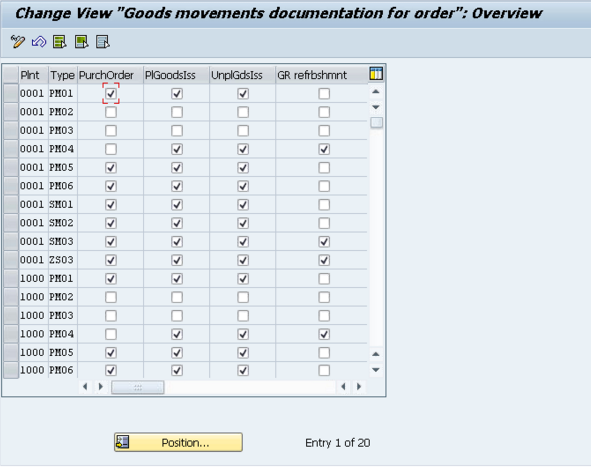
Once inside the transaction, this is what you’ll see.

Now, I encourage you to make sure all the components you use are checked.  that’s all there is to service order document flow.

If you have any SM needs, please press the contact us button at the top of this page,

Thanks for reading,

Mike

Service Order change documents – Make sure this is turned on

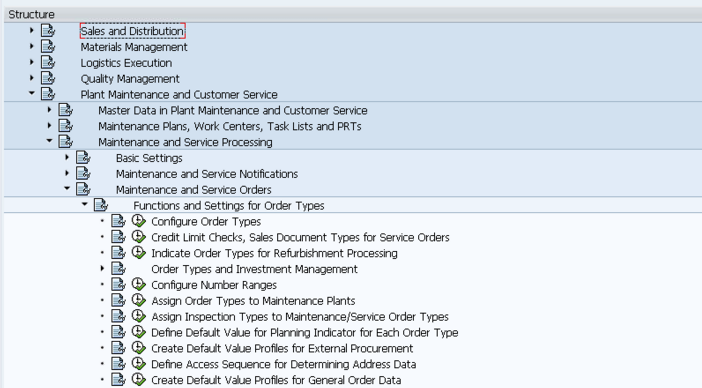
One of the important pieces of tracking your metrics (and more importantly your improvement) in SAP hinges on having data.  In the service order, a lot of the change documents are turned off by default.  So I thought I’d put together a quick post to show you how to activate the Service Order change documents.  So, let’s start with where the configuration exists in SPRO

Now, here’s all things you should be aware of in this transaction.  First, find your order type and plant, then start scrolling across and make sure that you’ve checked everything that makes sense for your business:

Indicator: Status change document active for materials  this will track the status changes in a service order for the materials.  if you do metrics reports, you need this checked.

Increment this is the increment of operation numbers in your task list.

Status change document for header order/network this collects all the header level status changes.  Again, if you collect metrics, you need this checked.

Collective Requisition if you want a single purchase req for the whole order, check this box.  Otherwise you’ll receive a different pur req for each item.

Res/PurReq this determines if the purchase req/component is released as soon as it’s entered, or not until the service order has been released.  I’ll usually recommend (2).

PDC Active exactly what it says, plant data collection is active.

Indicator: Workflow for purchase order change you get the idea.

Indicator: creation of change documents active highly encouraged, so you can see all changes.

Ind.: Copy Net Price from Requisition into Purchase Order you get it.

Indicator: Status change document active for operations another change indicator.

Indicator: Status change document active for PRTs last change indicator

If you’re not sure you have this stuff set, I encourage you to go check.  If you don’t need it now, I’m sure you’ll need it in the future.

As always, if you need any SM assistance, please contact us,

Thanks,

Mike

Variant Configuration – ETO CWG Tips

Here’s some quick ETO tips I got at the CWG that I didn’t want to forget.

If you are dealing with an engineering special or ETO configuration, you could use output determination to send an email to a group of engineers.  The drawback to this approach is that you need to know it’s a special in advance.  Much more difficult to use if it might be std or might be special.

In addition, the functions starting with CAVC allow you to build your own order bom workbench.  If you wanted to build your own CU51 or OEWB, you could use the functions to design your own transaction.


Remember, if you need more in depth VC help, please contact us,

Thanks,

Mike

Service Management – Understanding the Repair Procedure

One of the key pieces of the in-house repair scenario is the repair procedure.  The repair procedure simply put is the roadmap of actions that need to happen when you perform a service process.  I’m going to talk about how you can set this up and use it to fit your business process.

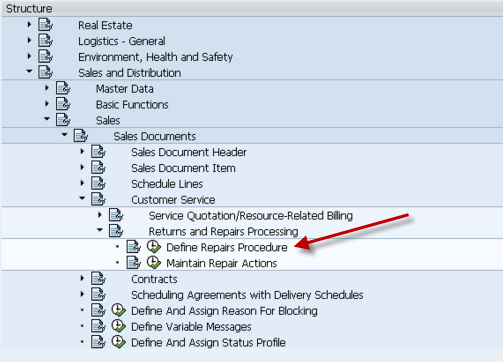
First thing is show you where in configuration you define the repair procedure.  The following screen shot shows you where to go in SPRO to configure the repair procedure.

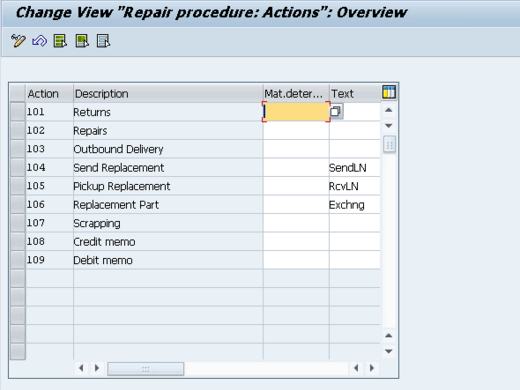
Initially, select the Maintain Repair Actions.  This screen will give you the translation of what each action means.  The actions are the key in the actual repair procedure, so I wanted to show you what they look like.  Normally, this screen doesn’t need to change unless you want to add better text to the action (this will show up in the repair screen).  Some of the important terminology in this screen:

  • Send/Pickup Replacement refers to loaned equipment.   Simply put, you send the customer a unit to use while the repair happens, then they send it back after they receive their repaired unit.
  • Replacement Part – this is an exchange.  It means the customer will keep this unit (and typically return the unit they currently have to you.  then you can repair it and add it to your refurbished/spares inventory).

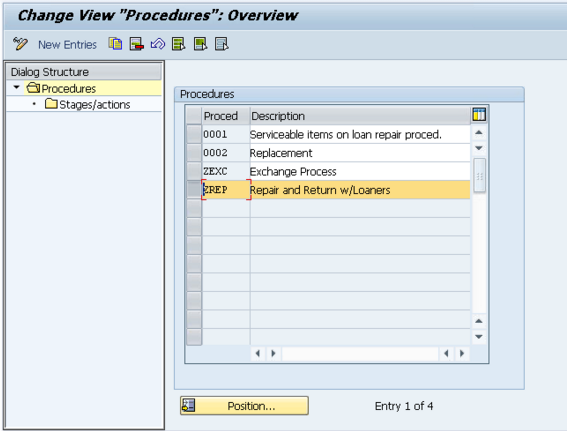
Alright, now on to the real work.  Next we will pull up the repair procedures.  I’m going to walk through the example of an in-house repair that allows loaners.  the next screen will show you how to get into the repair procedure.

Select the procedure you want to view (or copy in the event of creating a new one).

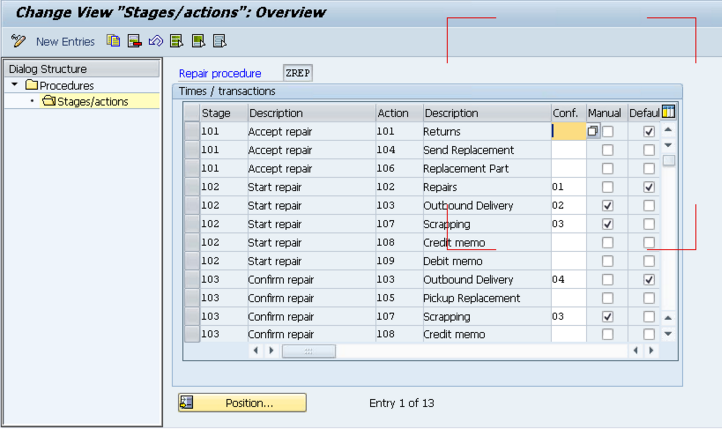
Now, you’re looking at the SAP logic of the repair procedure.  What you’ll notice is that everything is broken up by stages.    Remember, for each stage you can only define a single Default.  The stages are as follows:

  • 101         Accept repair: this is the actual receiving of the item
  • 102         Start repair: this is the repair of the item, or the processing
  • 103         Confirm repair: this is what happens after the service order is confirmed.

Now, if you look at the first stage(101) in the procedure below, you’ll see the following steps.  These are the steps you are allowed to do as soon as you enter in the material to repair.

  • 101         Returns                – this is flagged at Default, so that means this will automatically be placed into the sales order as soon as the repair procedure is selected.
  • 104         Send Replacement – this allows you to send a loaned piece of equipment to the customer
  • 106         Replacement Part – allows you to send an exchange to the customer.

Looking at stage 102, you’ll see the addition of Manual and Conf. populated.  Before I move on, the options for confirmation (conf.):

  • 01           Repair: fix me
  • 02           Do not repair/can be delivered: don’t fix me, but send me back
  • 03           Can be scrapped: scrap me
  • 04           Repaired/for delivery: I’m repaired, send me back to the customer.

Also note, if something is set as manual, even if 01 -> 04 above are selected, the item will not be automatically added to the sales order.  It will have to be manually entered.

Now looking at the actual data for stage 2 you’ll see that the numbers make a little more sense:

  • 102         Repairs                                 01                           : since this is 01, it means repair me, thus generate a service order.
  • 103         Outbound Delivery         02           Manual: this is the scenario  where the item cannot be repaired, so just send it back to the customer.  This is a manual step.
  • 107         Scrapping                            03           Manual:  Similar to 103, but this time we won’t even send the item back to the customer.
  • 108         Credit memo                                                     :  Create a Credit Memo Request for the customer, with reference this line item.
  • 109         Debit memo                                                       : Create a Debit Memo Request for the customer, with reference this line item.

I hope this makes sense of how to structure your repair procedure.  If you’d like more detail, please comment below.  Now for the next piece, how do I attach this repair procedure.

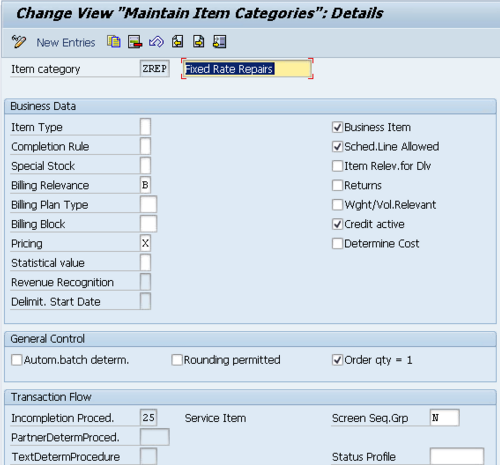
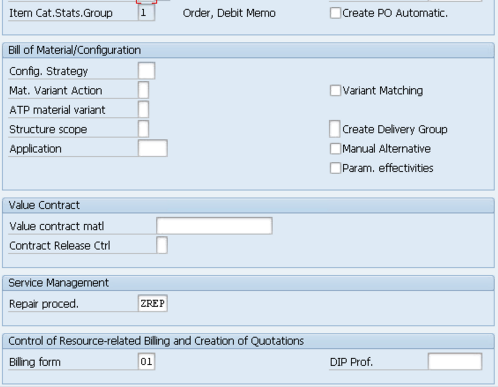
In the item category configuration, scroll to the bottom of the item category, and enter the Repair Procedure.  I’m not going into the details of how to select this item category (I’ll save that for another post).

I look forward to your comments,

If you need more in depth assistance on this, please contact us for additional consulting help,

Thanks,

Mike

Service Order – Using the Document Flow

Now in my opinion, one of the greatest things that SAP has added into the system is document flow.  this is especially true for SM.  If you’re new to SM or SD, you might not be all that familair with using document flow.  If you’ve ever visited an SD or SM document, you’ve most certainly seen this weird little icon:  .  If you plan to do anything in either of these areas of SAP, you’ll quickly realize it is your best friend.

Document flow in SAP is simply the connection to all of the preceding/follow-on documents.  In the in house service scenario, a type document flow may look something like this:
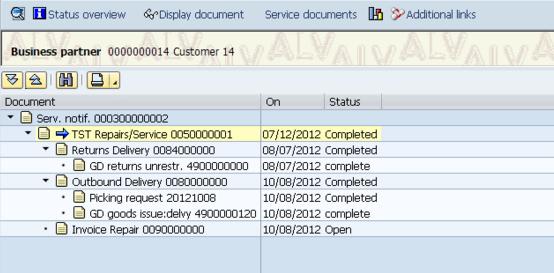
You’ll notice that in this picture I was able to see notification, the repair sales order, the inbound delivery, the outbound delivery, the invoice, and any other SD related documents.  What you also may have noticed is the distinct lack of the service order, but there is a service documents button.

Unfortunately, in the design of document flow and the table structure for capturing this, the service documents were neglected in the initial design, so the Service Documents button I believe was an afterthought.  It’s still better than nothing, and I’ll give you some tips for making the best of it.

The first big thing you need to know is, if you’re starting at an SD document (delivery, sales order etc. ) be sure to click once on the sales order (make sure it’s highlighted, and you’re good).  then press the service documents button.  This will bring up a new screen showing the service order and any of it’s related documentation.

One of the other issues I’ve encountered with document flow is the inability to see sub-service orders in the documentation.  The only way to see if there are sub service orders is to drill into the service order, and look for the structure button
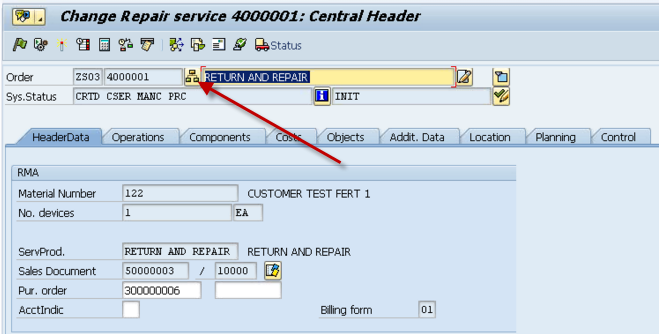
You will then need to click this button to see the sub service orders.  You can then drill into the order and see it’s individual document flow.  As a follow-on to this topic, if you have a complicated doc flow, for example…

Notification

Service Order (for quoting) – Repair Sales Order
     Service order
          Sub Service Order
          Sub Service Order
Inbound Delivery
Outbound Delivery


Now with a structure like this, you again, won’t be able to see everything depending on where in the structure you are at.  For example, if start at the service order (for quoting), you won’t be able to see the actual service order used for repair.  Instead, you’ll have to navigate to the notification, and then you’ll be able to see the structure below the notification, including the repair sales order.  The way the documents are laid out above, shows kind of how SAP structures them.  Since it is a pseudo parallel path, you have to work your way up to a common document before you can see the next path.  In this example, the notification is that common document.

There is a another big thing to remember when dealing with service.  You have to turn on the document flow for many of the items.  For example, purchase reqs, material transfer, etc. must be turned on before they will generate items in the document flow.  I HIGHLY encourage you to make sure these are turned on.  Not seeing the purchase reqs, or materials issued to a service order makes your job as a troubleshooter FAR more challenging.

Now that’s the basics of document flow, and if you’re not already using it, get familiar.  For me, it’s personally one of the best tools offered in the SD/SM module.

Thanks for reading,

Mike
Service Management – Using the Notification Status to your advantage

Now in my many consulting engagements, one thing I’ve seen consistently overlooked is the notification status.  When I ask why don’t you close your notification when you’re done with them?  I always get the same answer, we don’t have the time.  Now I understand that everyone is busy, and extra steps take extra time, but today I’d like to point out why using the notification status can help your service organization.

Now, the first thing to notice is that by default, service notifications do not have a lot of status options.  For the most part, it’s open, closed (there are more if you use the tasks, but that’s for another day).  So it’s pretty easy.  There is also the ability to add the user status (another thing I highly encourage, more on this later).  So we’ve established that there are simple choices in the service notification…  but they are often not used.

Now, the whole point of this post is to tell you why you’re missing out if you don’t use these.  Just like everything in SAP, you can collect data, metrics, and lots of useful information if you just enter it into the system.  I did a post the other day talking about how companies miss the boat by either not entering, or not using the info that SAP offers.  Well, this is directly related to that.

Entering the status of the notification allows you to use standard SAP transactions (IW58 for example) as a work list of notifications that require attention.  More importantly, it can give you the metrics to see how well your call center is performing.  Since SAP collects all the data for you, you just need to tell it when you’re done, you can have instant statistics on how many notifications were created, how long were they open, how many were closed, and even who closed them.  If you run a call center, this information could be vital to determine if you have enough representatives in the call center, are they able to close the majority of calls without follow-up, how many were questions vs. an actual return or RMA request?  All of these metrics can be extracted from SAP (if you want to see this in action, check out the demo for Broadsword, and it will show you a program that shows you all of these metrics.  All of which extract standard data from SAP.

The whole key to this is…  someone needs to perform the tasks of setting the status (user status, or just closing it).  Like everything, the data is no good if no one is looking at it, but if you are a proactive organization,  you are probably looking for ways to cut costs.  Knowing how your call center is performing can give you some key insight into now only your employees and their skill sets, but also into your products and how well they meet the needs of your customers.  (you can tell this by the number of returns, the reason for returns, and the number of repairs).

Well, I hope this was useful… as always, thanks for reading and I’d love to hear from you,

Mike

Variant Configuration Availability Checking – What you might not realize

I’ve been doing Variant Configuration for the majority of my “professional” career.  I learned something in a recent project that I somehow missed up until now.  Sales Order Availability checking for Make-To-Order items has some major limitations.  Let me start by explaining the setup and what we ran into in a recent client of mine when we attempted to use Variant Configuration Availability Checking.

We were creating a reasonably complex VC model and placing it into the sale order.  We were generating an Assemble-To-Order production order directly from the sales order (skipped the planned order step).  Now to further complicate things, we were also using collective orders inside of the VC bill of material structure.  None of these things by them self were that far out there, but it was the first time I’d ever done all of them together.

SAP provides a program, SDV03V10 as an availability checking program.  I found this through some OSS notes and eventually started playing with it.  The functionality worked alright, so we went live with it.  What we quickly discovered after go-live is that orders just weren’t being pulled into early dates.  It quickly became apparent that the MTO availability program ran one line item at a time.  During unit testing, not problem, but suddenly there were many VC line items on the same sales order (or possibly even standard items).  Well, the availability programs don’t exactly play well with eachother.  Below are the conditions we discovered.

  • The standard V_v2 will not pick up any MTO items.  It automatically excludes them from the program selection.  So now this program will only work on standard items.
  • The SDV03V10 program  only executes one sales order line item.
  • Sales order are often complete delivery

This “perfect storm” cause nothing to be rescheduled automatically.  If you are not picking up the pattern, don’t feel bad, it took 3 of us to finally pull this all together.  So, here’s an example:

Sales order 1 has the following items: The original promise dates are shown first.
10           STD1      qty: 1                     Date: 12/12/2012
20           MTO1    qty:1                      Date:12/12/2012

The sales order is complete delivery.
Now there are some inventory changes that make the availability of item 10 to be 11/15/2012 and item 20: 11/20/2012.
if you run V_V2, it will run against the order, but because it is complete delivery and there is an MTO item, it can’t reschedule it earlier than 12/12/2012.  Now if you run the SDV03V10 (or any variation of this), the exact same thing will happen.  This will leave you in a loop where nothing reschedules unless you go into the order and run a ATP check of all items.

After finding this, I decided that JaveLLin Solutions, LLC should design a new program that will mimic the complete ATP check.  If you think this is something you could use, please contact me.

Thanks for reading,

Mike

Installations in SAP – Project Systems vs Service Management

I recently got a request from a consultant friend of mine.  He was wondering about the best way to capture costs of installations.  In my experience, there are 2 very different ways of handling this, and much of it is related to the size/complexity of the installations and the amount of data you are willing to maintain in order to accomplish this.  Let me talk a little about the 2 methods.  In the end, both are great, but you should be able to look at the situation and decide which one fits your needs best.  Now, my quick disclaimer.  I am by no means a PS expert.  There quite probably many things I’m leaving out of the discussion, and I encourage you to talk to a PS expert if you think you need to go down that path :).

1. Project Systems.  This method is typically reserved for large installation (in my opinion).  The nature of project systems is that there is a lot of functionality, but there is also a lot of data to maintain in order to use it.  In PS, you can have multiple different cost collectors, full project tracking, production orders, service orders, purchase orders, etc.  all of these things traceable inside of a network/WBS.  I recommend this approach for anything that is large and may require any sort of planning functionality (for example, planning multiple service technicians, material reciepts, contractors, etc…).  Most importantly, if you need to track it like a project, it should be a project.  As far as costs/price go, usually resource related billing is used to track this since it is often a time and materials type activity.

2.  Service Management.  this is method is gonna be  the down and dirty method.  It’s a single service order (with the ability to make some sub service orders if you so desire).  It will still allow you to plan components and operations, but from a simple order structure.  You use this approach typically for anything small that doesn’t require a full project plan to coordinate (or if you want to do the project planning in MS Project and that’s good enough for your purposes).   The installation service order can be spawned directly from a sales order.  You can still use resource related billing for the cost/price determination in the sales order.

In my experience, the biggest thing you lose between SM and PS is the reporting and scheduling functionality.  PS is far superior in this respect, but if it’s overkill for your needs, you can get by with a much more simple approach in using the service order.

I hope this sheds some light on the differences.

Thanks for reading,
Mike

Posts navigation

1 2 3 88 89 90 91 92 93 94 97 98 99
Scroll to top