Configuring STMS – Transports you can collect

Anytime you create a new system for SAP development, you need to configure the transport management system (STSM).  I’ve struggled with this in the past, but after enough trial and error I finally figured out what needs to happen.  Please keep in mind, the system that I’ve configured is all about collecting the transport files so I can manually move them to other systems, I do NOT have a multiple system environment.  Configuring STMS isn’t bad, just make sure you hit all the steps.

Start at transaction STMS
Menu:  Overview–>System
Menu: System–>create–>virtual system

give your VS a name
green arrow back when you’re complete.

Menu: overview–>transport routes
Press Pencil to go into change mode
Drag the boxes of the actual system and virtual system into the big working window
Menu: edit–>transport layer–>create

Give your transport layer a name.
Menu: Edit–>transport route–>create

Enter in the Actual System, then the transport layer you just created, then the virtual system.

Finally save, and distribute the changes across all systems.  That’s all there is to configuring STMS.

Good luck

Applying SAP Support Packs

I have had my basis hat on a lot lately, so I might as well cover another piece of the basis puzzle.  For anyone like me, you don’t have a lot of time to figure out exactly how to upgrade the system, but you want the stability (at least usually) that comes with an updated system.  For me, I was trying to upgrade my system to a point that my BSP application would be supported on the Mozilla Firefox browser.  I’ll talk more about this at a later time (I’m still collecting details on that portion).  Needless to say, I read an OSS message that said, get to support 19, and I was at 12.  So today I thought I’d talk about applying SAP support packs.
Step 1. Figure out the components you’ll need to update, and what your current version is.  If you go to system->status, and look at the detailed levels, you’ll see things like BASIS, ABAP, etc…  based on the OSS message, you’ll what you need to update.  Find the component, and then find the SAP naming convention.  For example the BASIS stuff is KB700<XX>.  This is important because it’s an easy shortcut to download exactly what you need.
Step 2.  go to service.sap.com and head to the software area: and select the Search for Software Downloads.  Take the naming convention from above and one by one, find the pieces you need.  If you need a lot, it’s probably faster to go to the support section.  Me, was only doing 6 files.
Step 3.  Once everything is downloaded, log into SAP (your dev system/client) and go to transaction SPAM.  Select the import and one by one, import each of the files you downloaded.  Don’t apply the packs one by one…  it’s a long enough process, so do the whole group at once.
Step 4.  Once all the pieces have been imported, press the truck to start a new “installation”.  you’ll have the options to select the area you want to update, for example BASIS.  It will show you all the new imports and will lump them into a package.  From here, just keep hitting OK.  Give yourself plenty of time to be without the system.  This could easily take several hours based on the power of your system.
***  Note:  you might have to upgrade your SAINT as well.  If this happens, you’ll get a message that support pack XXX must have SAINT version YY.  Simply repeat step 2 & 3 for the SAINT update.  There is another menu option to update the SAINT.  run this, and wait for it to finish.  It typically takes a while, and sometimes even shortdumps.  If this happens, you can generally jsut log back in and restart the process.  It will pick up where you left off and finish up the install.  Then you can go back to step 4.
Step 5.  Run SGEN.  I’ll typically pick the software component to update, but feel free to select what works best for you.  Short story, this will help compile the thousands of program that need it, and hopefully save you quite a bit of time for every transaction you visit for the first time.
If all goes well, your system is running better than ever after the update…
Good luck,

Mike

SAP Webgui – Turning it on

Well, now that I have someone else working with me, I needed to be able to get the system up and running so he can help with testing and data stuff.  Since logging into SAP doesn’t always work behind a firewall, I figured I should get the SAP webgui turned on.  Well, I stumbled upon a blog: (I just subscribed to his RSS, since I can always use extra basis help).

https://sapbasis.wordpress.com/

Anyway, here are the simple steps to turning on the SAP webgui (provided your server is available to the outside world.  See my previous post: http://paperstreetenterprises.com/networking-sap…l-server-world/

Check if you have activated:
1) With transaction SICF and locate the services by path
/sap/public/bc/its/mimes
/sap/bc/gui/sap/its/webgui

2)With Transaction SE80 locate from the menu, Utilities –> Settings–>Internet Transaction Server (Tab)–>Publish (Tab) and set “On Selected
Site” = INTERNAL.
This restricts the publication in the next step to the integrated (internal) ITS.  Please note, on my ERP 6.0 SR3 system I didn’t need to do this.  My system was already set to INTERNAL.

3)In SE80 only, Locate the Internet Services: SYSTEM and WEBGUI.
Publish these services with the Context Menu -> Publish -> Complete Service

4)Now Browse to http://<server>:<icmport>/sap/bc/gui/sap/its/webgui/! and login to the webgui.

Thanks for reading…

Creating the printer LOCL

I know this is an easy one for most basis folks, but I had to do some hunting to find it.  So, maybe it’s useful for you too.
This is the guide to creating a local printer LOCL on your SAP system.  Pretty easy.  enjoy:

Follow the procedure below to create a device definition for frontend printing:
1.      Call transaction SPAD, and choose Output Devices.
2.      If you are not in change mode, switch to this mode by choosing This graphic is explained in the accompanying textChange.
3.      You can now do the following:  Create a new entry
4.       Fill out the mandatory fields of the device definition as follows for frontend printing:

Device Attributes Tab Page

Output device

Enter a name for the output device that makes it clear to your users that this is the frontend printer, such as Locl.

Device Type

We recommend that you use the device type  SWIN, SAPWIN, or a language-specific version for Microsoft Windows PCs. However, you can use any device type.

Use the device type pdf1 or a language-specific version for Frontend Printing Using SAP GUI for HTML.

Host Spool Access Method tab page

Access Method

Specify the access method F for frontend printing.

Host Printer

Enter the name __DEFAULT to use the default printer at a Microsoft Windows system.

If you specify __DEFAULT as the host printer, and the user enters the name of the output device, such as LOCL, in the print window and chooses enter, the system displays other printers defined on his or her work station PC. However, you can deactivate this list for users by selecting No Device Selection at Frontend on the Host Spool Access Method tab page.

4.      Save your entries.
Result

When you save the device definition, it is available for your users’ use. To print documents using their frontend, users must enter the name of the output device that you have just created in the Output Device field of the print window.
Example


Networking your SAP Virtual Server to the outside world

What can I say?  this one has been on my wish list for a VERY long time, and thanks to a new friend of mine, Brent Brunner, I can finally see my BSP’s/web applications somewhere beyond my local machine.  It is so cool, for first time I know that my Rapier BSP doesn’t work on the Safari browser (not great, but now I can address it).  So for anyone out there, here are the basic steps to accomplish this:

On the Virtual Machine
1.  be sure the network is setup as a bridged adapter.
2.  for that adapter, you need to set the network to be a static IP address.  It doesn’t really matter what address you pick, but you don’t want it changing.  So go into your network adapter and specifically enter the IP address/gateway/etc…  If not sure of all these values, use the CMD prompt and the command:  ipconfig -all  This will give you all the network numbers you need.
3.  find out what port SAP is expecting for <HTTP Port>.  You can use transaction SMICM.  by default, the value is 8000.

On your router settings:  (I’m not going into much detail here since very router is different).
1.  find your primary machine.  You need to set this as a static IP address.  It should match the IP address you chose on the virtual machine.  On my AT&T Uverse box, I went to LAN–>IP Address Allocation.  I found my actual computer, and set it to the IP address from step 2 above.
2.  you need to define some exception ports.  Is should be the same port you found in transaction SMICM.  For this I went to Firewall–>applications and I clicked add a new application.  Then I filled in TCP/IP and the ports I wanted to exempt.  Then I selected my main system, and attached the applications.

Find your public IP address
1.  You can use the website:  www.whatismyIP.com  this is now the IP address that the outside world can use to connect to your system.

On your hosting site (for me it was hostgator).
1.  create a subdomain = to your virtual system name.
2.  Create a DNS entry for your subdomain.domain = your public IP Address
3.  Wait 12 – 24 hours for the changes to propogate through the web.  (this was the part I hated, because I didn’t know if it was working).

Accessing your stuff.
now any BSP’s or anything like that, you’ll need to first give the server, so it will be the subdomain.domain:<HTTP port>/sap/bc/…

I hope I’m not forgetting any steps.  I don’t pretend to be an expert about this, but I’ve spent the last 24 hours learning from Brent and trying to make it all work.  Now as of tonight, it’s all working.  Very exciting to a geek like me.  Here’s my disclaimer.  I’m fairly sure my network is still secure, but like anything, when you open doors, someone could get in.  Make sure your anti-virus software is up to date, and keep on the lookout for anything strange.  Who knows?  I might have to turn it off at some point and pay the $$$ for a VPN to do the same stuff, or other such fancy networking stuff.

Thanks for reading…

And a special thanks to Jeremy Meier…  without your connection, i’d still be stuck with a local machine 🙂

Features vs. Benefits – It really does matter

My latest marketing lesson that I learned is just how important it is to sell benefits, not features.  Being a programmer, I’m used to dealing with features.  What does it do? is it cool? How fast is it? etc…  but after listening to the lesson, I learned that even I need to know the benefits.  Just because your new widget can do something, until I know why I NEED it to do that, I’m not going to buy.  The latest lesson had us focus on converting a feature into a benefit, simply by going down the ladder of why does my customer care?  For example, you have a feature that provides the fastest dry cleaning in the county.  Ok, great…  but why do I care?

Fastest Dry cleaning in the county:
It gets me my clothes faster than anyone else

why do I care?  I have a big meeting tomorrow, and I need to look my best.
why do I need to look my best? I need to give a great presentation
why do I care?  I need to be my most confident self.
why do I care? it makes me feel good about myself.

I apologize if I butchered that, but the short story is that everyone needs to feel good about themselves, so for every feature, you need to walk up the ladder until you can get that response.  IN this case, having my clothes ready tomorrow for the big meeting will give me the confidence to feel good about myself, so I can make a great presentation.  I just did this exercise with my Broadsword 1 page sales document.  It actually made a big difference.  No, I didn’t make a sale yet, but this gets me 1 step closer and increases my chances of feeling better about myself because my 1 page document are more likely to hook a prospective customer 🙂

Anyway, that’s all for now.

Mastermind Group – You Need One

Tonight, I made a new revelation. A mastermind group is invaluable. I’m doing this marketing class called the Remarkable Blueprint. I’ve been doing some of the exercises, and I kinda hit a wall a day ago. I got to the point of being overwhelmed with all the exercises and trying to apply it to the all of the materials I’ve already generated for my products. I’ve found that often I can get bogged down when I have too much to do, and I don’t have a good starting point. Which is funny, because every time I get to this point, as soon as I start doing something, anything, I get out of the rut.
Well, I was talking to my friend, Justin, who is also doing the Blueprint. He hit me with a flash of the obvious. Just pick one product, and perform the exercises for that one product. The other areas can be tackled later. So I just decided to do my dashboard. I’m going to start cleaning up all the marketing materials for Broadsword. I’m actually pretty excited.
Now, my original point is simple. If you want to get the most of your endeavors, you need someone (or a group) that you can bounce things off of. I actually gave Justin his own ah ha moment, much like he gave me. It’s often as simple as having someone that isn’t neck deep in the details to point out the obvious. So, start finding some people that have similar aspirations. I bet you can help each other out in more ways than you imagined. The funny thing is that I read this in Think and Grow Rich, many years ago… but it took until now for it to finally sink in. It’s amazing the things you learn and don’t use… then out of the blue, it hits you.
Anyway, that’s all for now… I hope you’re learning from my mistakes,
Mike

Our First Trade Show – Carolina ASUG – Lessons Learned

My latest learning experience was the trade show. Now I’ve attended trade shows in the past, but this is the first time I’ve gone to one in the vendor mindset. Now, this was a relatively small group. It was a regional ASUG, so it was a great place to learn. My partner Mike and I got up at the crack of down on Thursday morning and drove 4 hours. We hit the vendor fair, that had about 10 or so booths. We talked to about half of the booths, in order to try to learn what other people are currently doing. We talked to some companies that were even doing SAP Add-ins, just like us. So we got some great information about pricing and we saw some good marketing materials that we can strive to check out. (speaking, please check out our one page document on any of our products. I’d love to hear your feedaback).
Here’s some of the lessons I learned

Lesson 1: Consistent Image:  Mike and I were in the process of getting the new company launched, so that meant we both came in under our own company name, Paper Street Enterprises & DMS. This wasn’t terrible, but since we were often at a booth together, we got a lot of strange looks, especially when we presented a JaveLLin Solutions business card.   So we decided that we need to get some shirts to wear (polo for sure), get a logo, get business cards, change our membership to to the new company.  Little things like that.  ha ha ha

Lesson 2: Avoid panel discussions if possible: On the first day, the last presentation was a panel discussion about ABAP Add-ins.  It was awesome because it gave us a chance to give a quick pitch.  However, we ended up following a guy that took twice his allotted time and just wouldn’t get off the stage.  This quickly annoyed the entire audience because this discussion was holding people up from going to happy hour.  Nobody wants to hear a sales pitch when they could be drinking free beer.  ha ha ha.  We learned that it’s worth the money to be a vendor and do an actual hour long presentation.  Plus, that will give us a booth.

Lesson 3: Talk to Vendors:  This was a big bright spot in the conference.  in the course of the conference we met 2 great vendors that are actually interested in partnering up with us.  So talk to everyone, you never know.  These vendors can help us get in the mobile arena with little work on our part…  (more about this in a future post).

Those are the big things I walked away with…  I”m sure when I go to CWG in Oct, I’ll be doing another one these…

Thanks for reading…

Power of the To Do List

Now everyone has their own style of getting things done.  What I’ve discovered about myself is that I need to make a list.  It’s one of the things I’ve heard over and over again in the personal development audio programs I listen to.  The funny thing is that now I’ve really started doing it, I notice just how much more I get done.  I literally knocked off 12 things on my list today.  Many of them, I would’ve put off (for who knows how long).  The simple task of adding an item to the list means I get it done.  I see that outstanding item, and it bothers me till it’s done.  Now don’t get me wrong, some of the items just get postponed till tomorrow, but it forces me to look at it daily.

Now I use a tool called Remember The Milk.  I love it.  it works great on the iphone, and it serves as a constant reminder of what I need to be working on.  I encourage you to give it a try.  It doesn’t matter how you do it, a notebook, a smart phone app, or a deck of index cards.  The trick is, don’t do anything that takes more than 10 mins unless it’s on the list.  It forces you  prioritize what you need to do.  Anyway, I’m going to keep this one short because you get the point.  Make a list, and watch your productivity increase.

good luck.

GUI Scripting: A how to guide

Using SAP GUI Script

SAP GUI Script is a fantastic tool that can be used to create transactional testing data, Change existing master or transactional data, create master data in mass or even just data conversion for certain tasks that LSMW can’t handle.  GUI Script has been around for a while, but it always surprises me that so few people are familiar with it.
The basic concept around GUI script is that you can load information into an Excel worksheet, and using a macro, allows you to load data into SAP.  This document is going to walk you through creating your own GUI scripts and using them effectively.

Turning on GUI Scripting

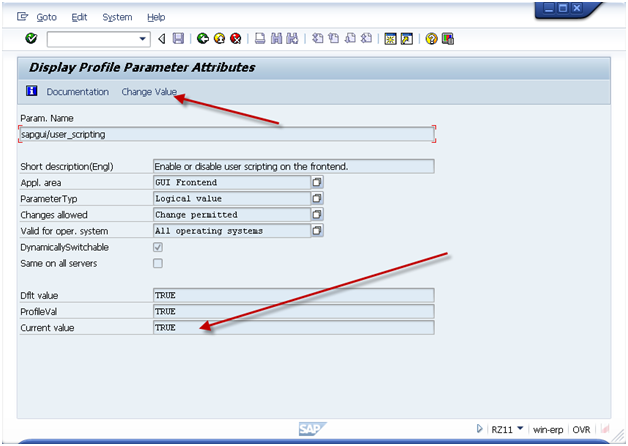
Tranaction: RZ11
Param. Name: sapgui/user_scripting

Press Display
gui-01
If current value is not set to TRUE, press the Change Value and set the value = TRUE.
Please note, typically this a basis function, so if you don’t have access to transaction RZ11, please contact your basis team.
As an additional hint, if you want to have GUI Scripting always active, it is encouraged to activate it in RZ10 (this adds it to the startup profile).

Recording the Transaction

When you are ready to perform the recording,  be sure you know the transaction you want to execute and the data that you can use.  You should also know the screens you plan to visit and the fields that you will be filling in.  Keep in mind, you can always update the recording file, but the better your recording, the less errors you will encounter.
The important thing to remember is that GUI script can NOT perform any logic.  it only works for repeating the same steps over and over again.  This means that if you receive an error on some records, but not others, you will need to execute 2 different scripts.  One script will do the non errors, and other script will do the errors.  You can cut down a lot of time if you can segregate the data early.
gui-02

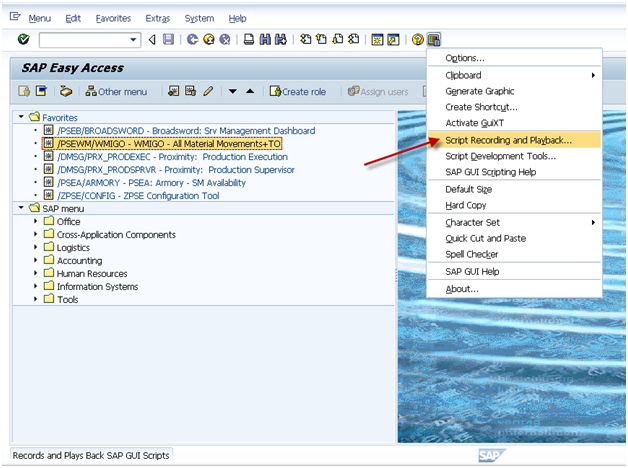
Activate the recorder.  It is encouraged to always start the main screen in SAP.  This prevents weird things that happens if an error occurs during the playback.
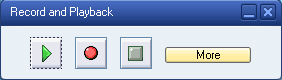
gui-03

Press More if you want to control where the file is saved.
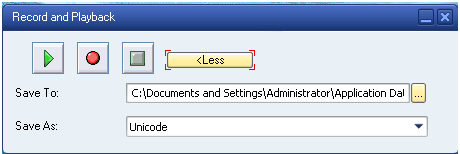
gui-04

When you are ready to start, press the record button (Red Dot Button).

Then proceed to execute the transaction you wish to record.
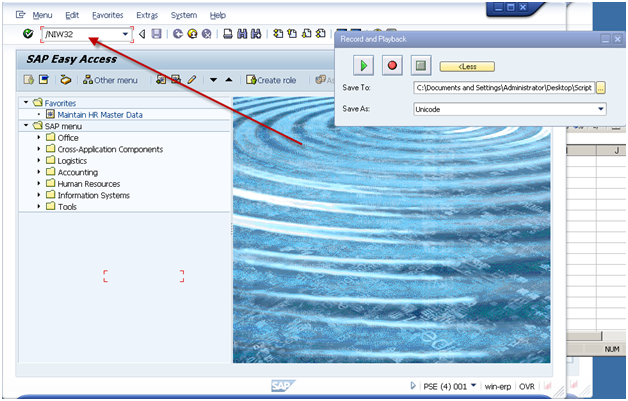
gui-05

Be sure to use ‘/N’ in front of the transaction code.
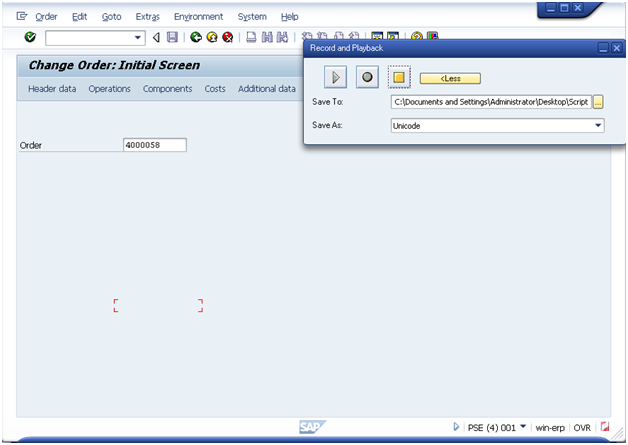
gui-07
Enter in the document number and press Operations Button.
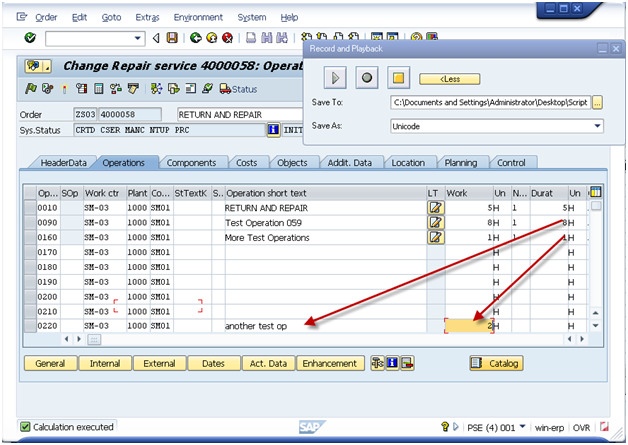
gui-08

Please note, when I added a new operation, I entered it on the bottom of the screen.  This allows you to avoid the risk of overriding exisitng data.

Press Enter.
Press Components Tab
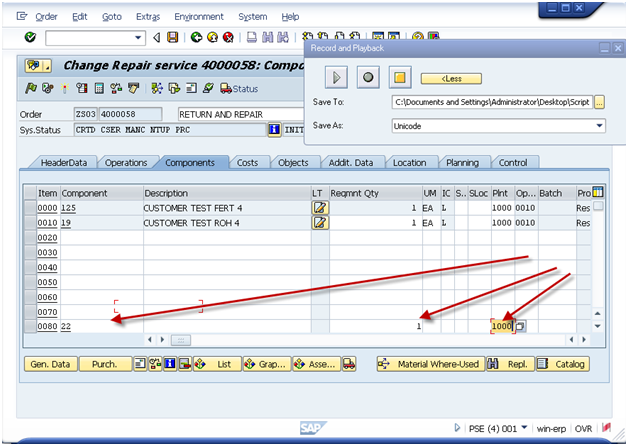
gui-09

Again, add the data to the bottom of the screen.
Press Enter
Press Save
Note:  sometimes there will be errors.  If errors occur, you need to remember that maybe not Every order you change will have the error.
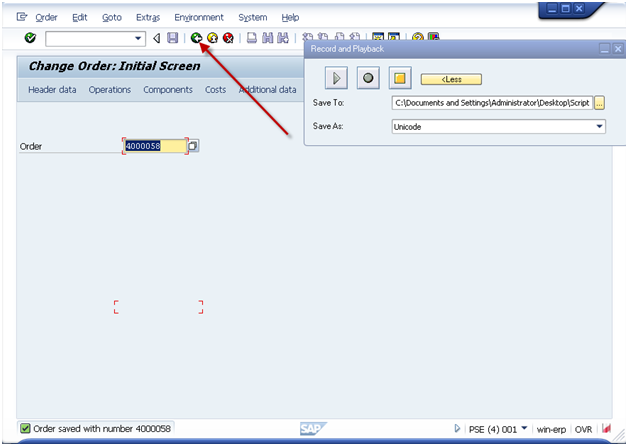
gui-10
I encourage you to press the green arrow back on every recording at the end.  This just helps to avoid incorrect loading of data.
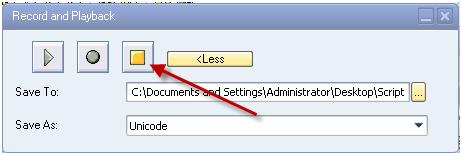
gui-11
Press stop.
Now, go find the file.  Be sure to RIGHT click on it.  If you double click on it, it will attempt to execute the exact same transaction again.
You should see something similar to this:
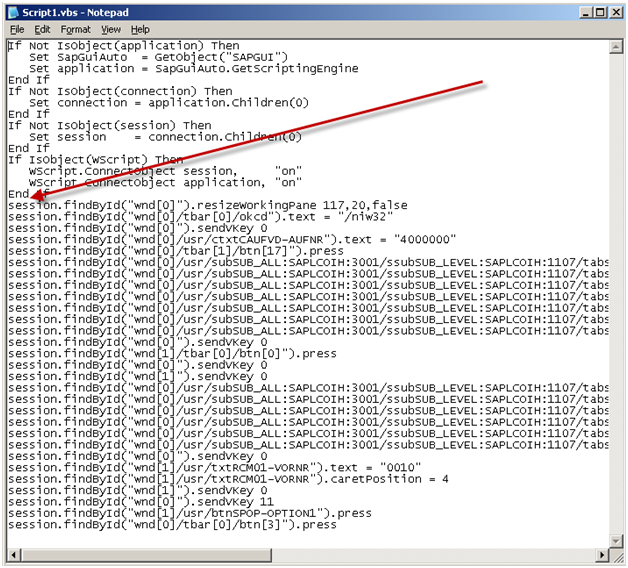
gui-12
The parts of this file you care about are the lines that start: session.xxx
I encourage you to skip the first line that resizes your screen.  and copy all of the remaining lines in the file.
Next up, add this information to the excel file.

Gui Script

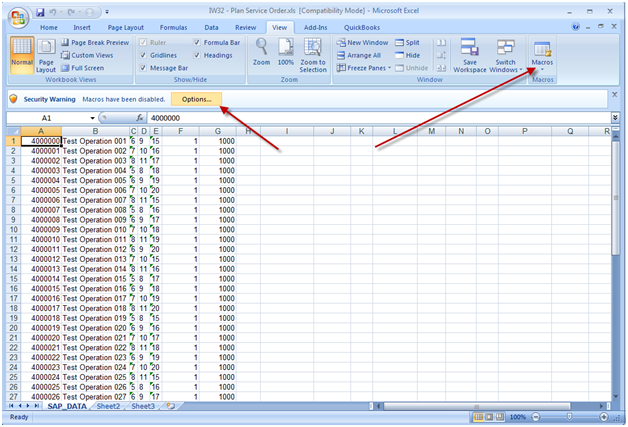
This will depend on your version of excel, but what you need to do is find the macro button:
MS 2003:
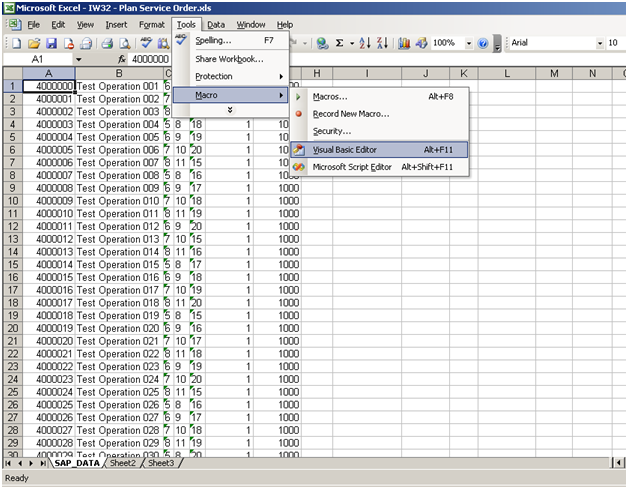
gui-13

MS 2007

gui-21
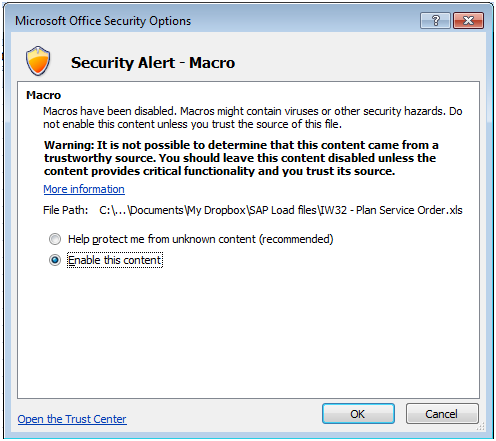
Be sure to enable macros.
gui-14
When the macro window opens, be sure to select the correct view on the left hand side of the screen.  Then move to the code section and find the area shown that says “Paste your recorded script below”.
If there is anything currently in this section, be sure to remove it, and replace it with the information from your recording (session.xxx).
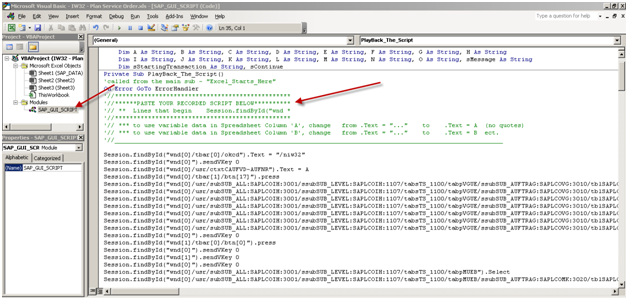
gui-15

Now, I’m going to show you how to point this to your excel document.
session.findById(“wnd[0]/tbar[0]/okcd”).text = “/niw32”

session.findById(“wnd[0]”).sendVKey 0

Change:
session.findById(“wnd[0]/usr/ctxtCAUFVD-AUFNR”).text = “4000000”
To:
session.findById(“wnd[0]/usr/ctxtCAUFVD-AUFNR”).text = A

session.findById(“wnd[0]/tbar[1]/btn[17]”).press

Change:
session.findById(“wnd[0]/usr/subSUB_ALL:SAPLCOIH:3001/ssubSUB_LEVEL:SAPLCOIH:1107/tabsTS_1100/tabpVGUE/ssubSUB_AUFTRAG:SAPLCOVG:3010/tblSAPLCOVGTCTRL_3010/txtAFVGD-LTXA1[7,8]”).text = “my test op”
To:
session.findById(“wnd[0]/usr/subSUB_ALL:SAPLCOIH:3001/ssubSUB_LEVEL:SAPLCOIH:1107/tabsTS_1100/tabpVGUE/ssubSUB_AUFTRAG:SAPLCOVG:3010/tblSAPLCOVGTCTRL_3010/txtAFVGD-LTXA1[7,8]”).text = B

Since this can get long, I’ll jsut show you the first 2 changes.  You’ll notice that I found the first two lines where I entered in data.  I changed it to a single letter (no quotes).  This is the excel column where you enter in the data.  It’s that simple.  If anything is a constant, just leave it as it is.
When you’re done, press save and you’re ready to execute.

Executing the Script

Now, the first step before executing the script is gathering all the data.  Typically, this is done using SE16, SE16N, or certain reports (IW73, VA05, COOIS, etc).  As always, be careful with the data you enter.  It’s your user id that will be assigned to the change :).

Once you have the data you wish to execute, simply go the excel worksheet and execute the macro
*** NOTE:  Remember, when the script is running you can’t do anything with Excel.  You can continue working in SAP, but Excel will be locked for the duration of the script.
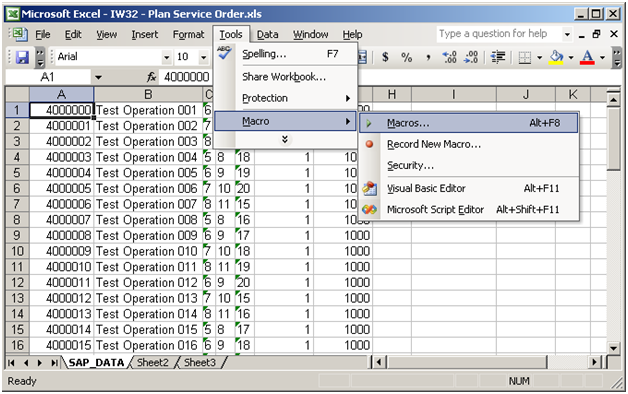
gui-16
**** NOTE ***
This is a VERY important one.  Be sure that the first SAP window open on your screen is the client you wish to change.  If you are doubt, be sure to logout of any client/system you do not want to change.  For example, if you are logged into production and QA.  You want to make the change to QA, I encourage you to log out of production.
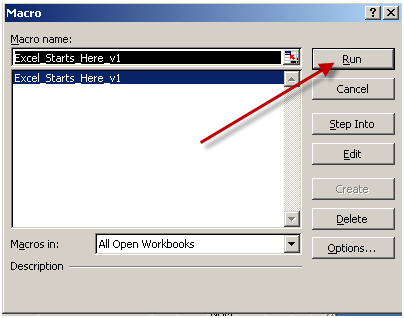
gui-17
Press Run
Note:  if you have multiple excel windows open, be sure the correct macro name is highlighted.  If you aren’t sure, close the other excel documents.
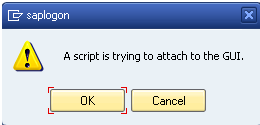
gui-18

Gui Script will always give you a chance to check the results of the FIRST record.
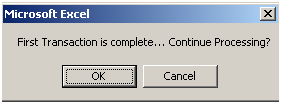
gui-19

I encourage you to always check and make sure it saved properly before pressing ok.  If it did not, press cancel.  Otherwise the script will go all the way to the end.

Once you are done, it will return control back to excel.
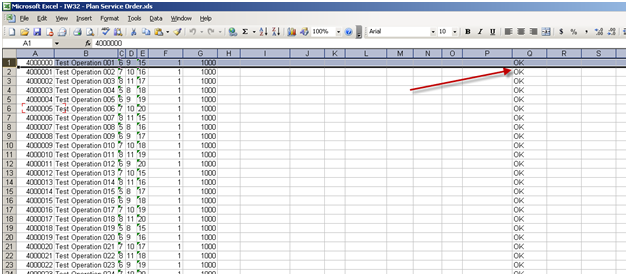
gui-20

As long as you see OK in the row, the record processed.  if you don’t see ok, you’ll need to check that record and possibly reprocess it.


Posts navigation

1 2 3 91 92 93 94 95 96 97 98 99
Scroll to top