Who are you Selling to?

I recently had a big revelation.  I was talking to a guy that does marketing through Linked-in.  I was already intrigued by the idea, so I met with him.  He spun things in a whole new light for me.  I realized that up til now, everything I’ve done is pretty much bottom up selling.  I try to convince service technicians or maybe managers that they need what I’m offering.  When in reality, I’m pitching to wrong people.

The key things I took away from our talk was that you really have to sell to the people with the money.  While it’s great to be able to convince the end users how great your stuff is and how much easier it will make their lives, in the end of the day, I’d be depending on them to sell it to their management, who in turn would need to keep selling it up the chain.  How could I possibly expect someone 3 layers removed to be able to sell my stuff as well as I can?  When I looked at it, my bottom approach was pretty much expecting someone else to do the work for me…  it’s not going to happen (at least not often).

The people I need to sell to are at the top.  The people with CXX in their title are the best place to start =)  Now, this of course brings up a whole new set of issues for me, including fashioning a new message geared toward the CEO, CTO, CFO etc.  Today’s message to any of you out there just getting started, think carefully about your audience.  I didn’t, so now I have to change my thinking.  The good news is that it isn’t wasted work.  If you can’t convince the people that will use it that it’s good, they’ll push back and you likely won’t get the sale.  The key is to be able to sell your stuff all the way down the line.    My next mission is putting together a new message for the top down selling approach.

thanks for reading,

Service Management – Warranty Claims example – OC

This is the final piece of the post crediting process.  Last time we covered the IV or inbound from the vendor.  This last piece is the OC or outbound to the claimant/customer.  We left off at the B025 status.

Press the action button.  Now you will create the claim version 4, to be sent to the claimant.

blog03-01

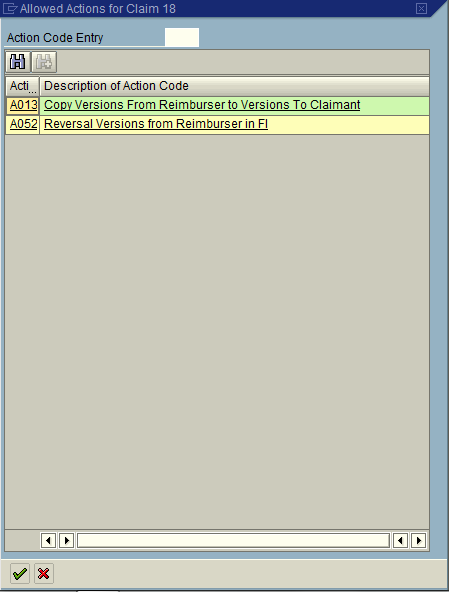
Select Action A013: Copy Versions from Reimburser to Versions To Claimant.

*** Note: you could reverse the posting by selection A052: Reversal Version from Reimburser in FI

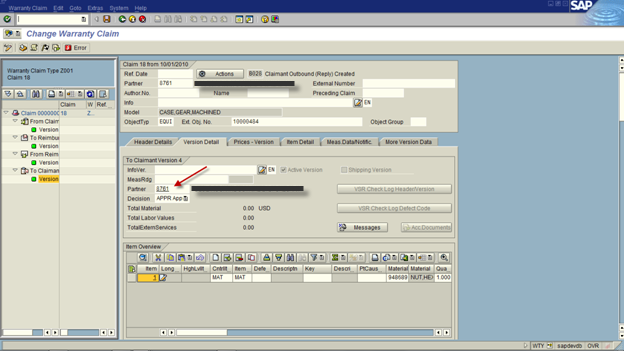
Status is set to B028: Claimant Outbound (Reply) Created

blog03-02

Version Detail: Be sure to set the partner to be the claimant (customer number).

blog03-03

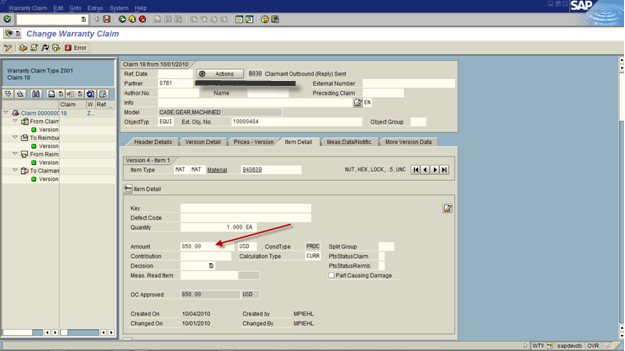
Be sure to verify the pricing on Item Detail.

After verifying the data, Press the Action Button:

blog03-04

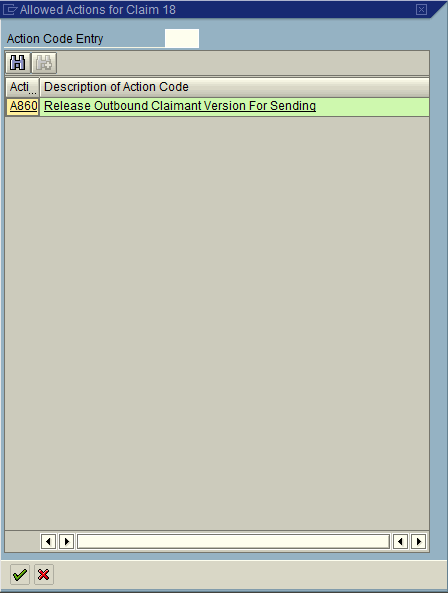
Select Action: A860: Release Outbound Claimant Version for Sending

Status: B030 Claimant Outbound (reply) Sent

Press the Action Button again:

blog03-05

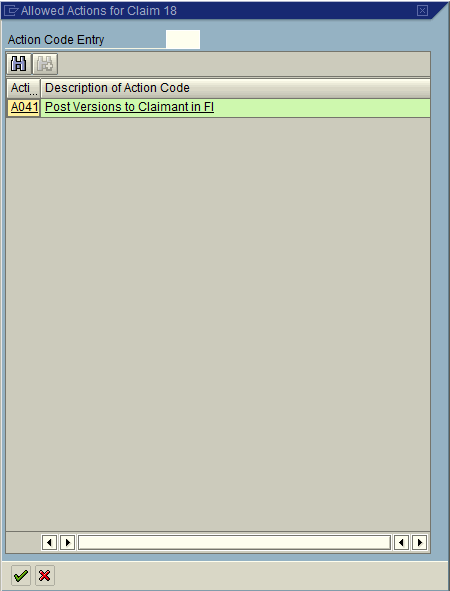
Selection A041: Post Versions to Claimant in FI

this will post the money to the customer account.

Status: B031:Claimant Version Posted

Finally Press the Checkered Flag to mark the claim as complete.

Status: B060: Claim Closed

*** Note, if the claim is rejected you would press the checkered flag as well.

So that’s the entire post crediting process in warranty claims.  I hope this helps shed some light on the full process and some of the things you can do with warranty claims.

Thanks for reading,

Service Management – Warranty Claims example – IV

Last time we talked about the OV or outbound to the vendor.  Now we cover what happens when we get a response from the vendor, or the IV.  We left off at status B010.

When the Vendor approves or rejects the claim, you can hit the action button to create the 3rd version of the claim.

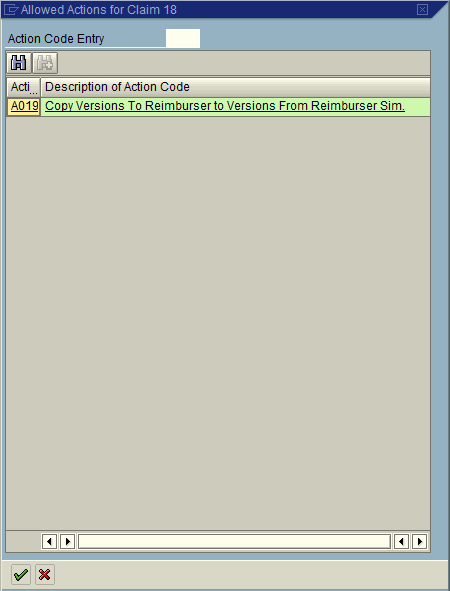
blog02-01

Select A019 to create the 3rd version of the Claim.

The status is now set to B020: Reimburser Inbound (Reply) Received

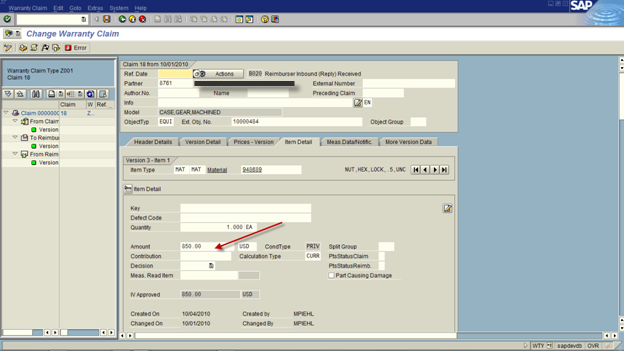
Be sure to update the Item Detail tab with the amount that the vendor will reimburse.

blog02-02

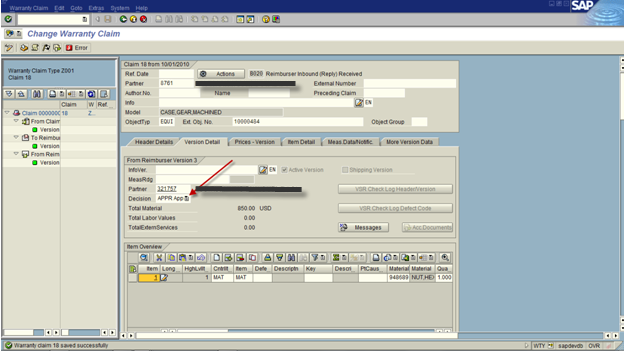
Be sure to update the Version Detail tab with the Decision (Approve or Reject).

blog02-03

Press the Actions Button:

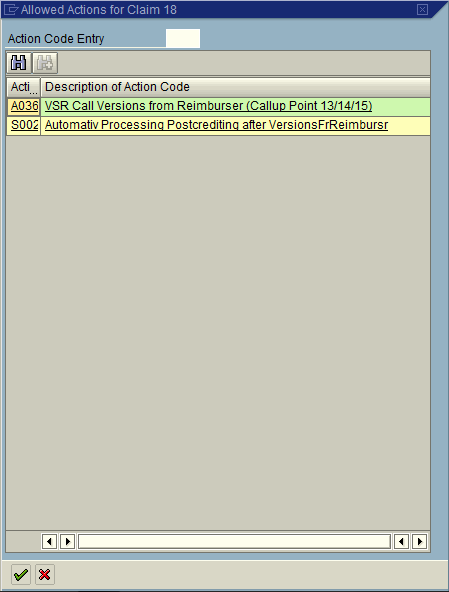
blog02-04

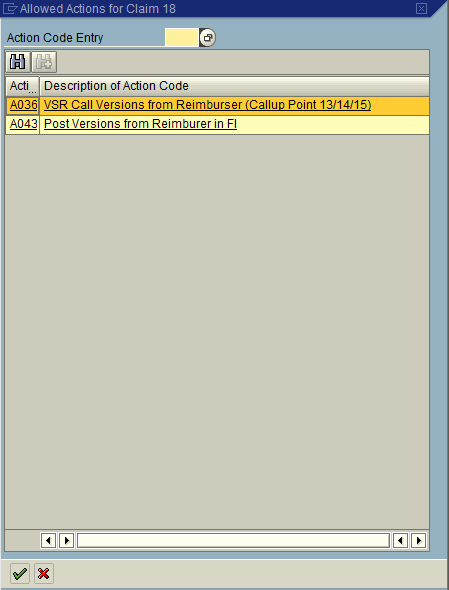
Select Action A036: VSR Call Version from Reimburser (Callup Point 13/14/15)

Status is now set to B022: Claimant/Reimburser Version checked

When the money is received, press the Action Button:

blog02-05

Select A043: Post Versions from Reimburser in FI

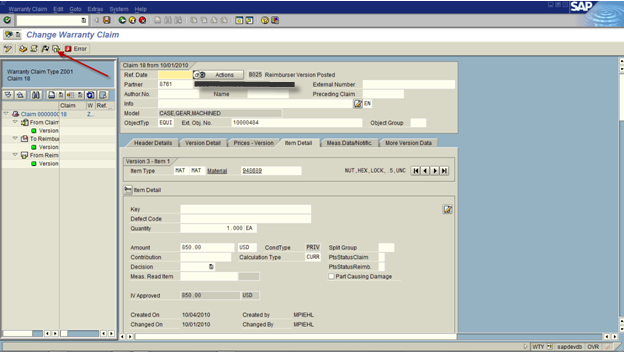
This will set the status: B025: Reimburser Version Posted

blog02-06

Press Save.

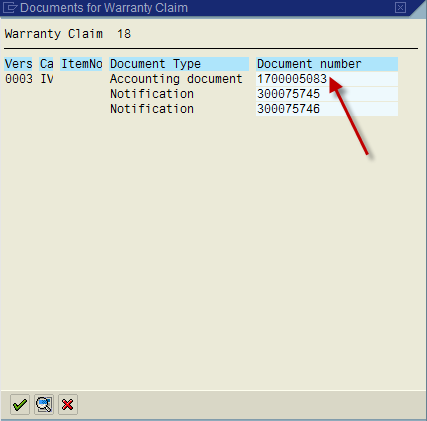
To see the accounting docs that were generated, press the document flow button.

blog02-07

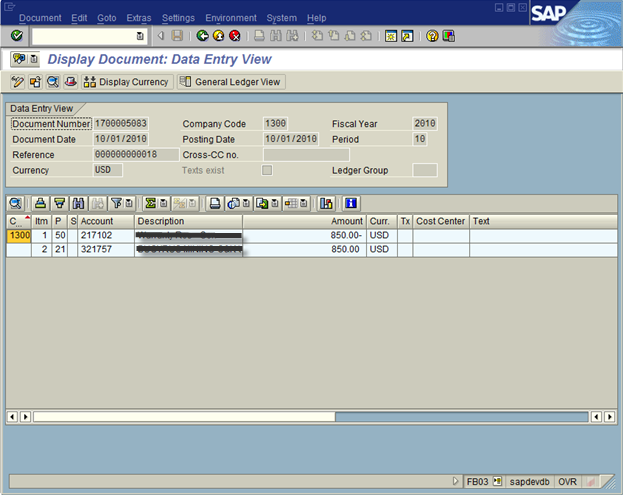
Click on the accounting document.

blog02-08

Green arrow back to the claim, and press the action button.

Now, at this point, you’ve received the money from the vendor.  Next time around, we’ll talk about the OC or outbound to the claimant/customer, the end of the warranty claims cycle.

Thanks for reading,

Service Management – Warranty Claims Example OV

This post is the second part of my example in warranty claims.  In my first post, I talked about the IC or the inbound from the claimant/customer.  This next piece is what happen next in the post crediting process, that is sending the information to the vendor.  When we last left off, we set the status to B003, which means the claim has been checked.

Press the Action Button Again:

blog01-01

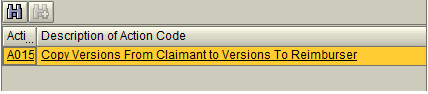
Select A015:  This will create Version 2 of the claim

blog01-02

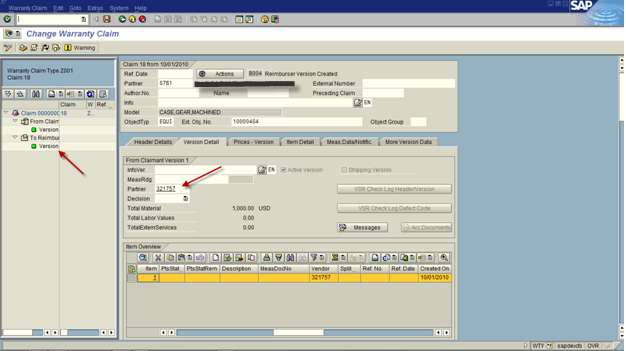
If you look on the left side of the screen, you’ll see that a new version was created.  The reason is becomes very important is that each version can have completely different pricing and partners.  Think of it this way, your customer may ask for $100.  You may ask the vendor for $125.  The vendor may give you $75, and ultimately you give the customer $90.  Who knows?  it all depends on your agreements with your customer and your vendor.  Regardless, warranty claims gives you the freedom to do what you need.

Note:  the version 2 of the claim will need a Vendor as it’s partner (this is the partner that will pay the claim).

Verify the pricing on the Item Detail Screen.  Then Press the Action Button again:

blog01-03

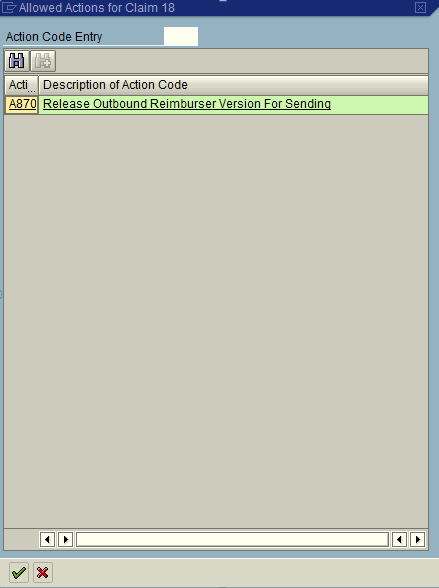
Select A870 to release the claim to be sent to the vendor.

The Status is now set to B010: Claim Sent to Reimburser

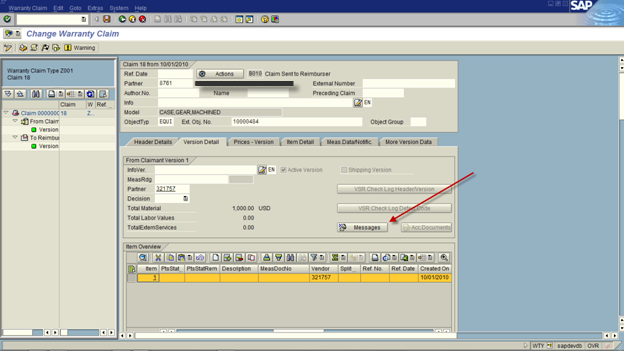
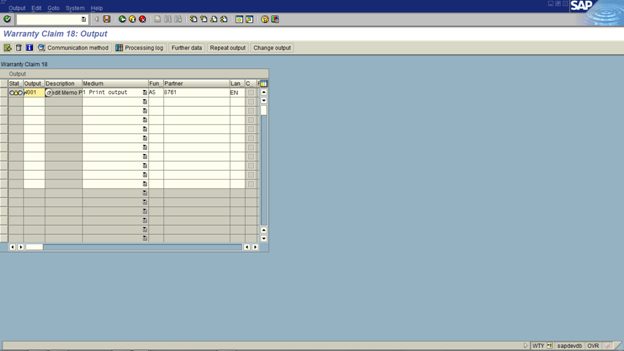
This next section is optional, but it gives you the opportunity to print or send output.  Depending on your process, this could be IDOC, printed or emailed.

blog01-04

Press the Messages button to print out

blog01-05

This will work just like any other output determination.  One of the biggest things to keep in mind is that there are no printed forms out of the box for warranty claim.  There some IDOCS (I believe), but nothing that you could print or email.  That means, if you need it you will have to design it from scratch.

Next time I’ll talk about the IV or inbound from the vendor.

Thanks for reading,

Be Passionate about Your Dream

I was sitting at a small coffee shop recently, and had a revelation.  As I was sitting there working, I heard a conversation going on at the counter.  I quickly determined that one guy was the owner.  He was extremely friendly to everyone, but the part that struck me was the way he went on and on about the new things coming to his shop.  He talked about how the new addition of soup was going so well, and how he just found this great new flavor (cream of tomato if you care), then he went to talk about the new truffles they would soon be bringing in.  He was so excited about all these little things and he couldn’t wait to tell anyone that would listen.While I noticed that a lot of the people he told this stuff to half listened or feigned interest in the vain of courtesy, occasionally someone else would say… “I could really go for a truffle right now”…  or something else.

Well, this really struck a chord with me.  Here was a small business owner truly excited about what he was doing.  He loved it, and loved to tell anyone that would listen.  It made me take a second look at my own attitude to my new business.  For example, when I meet someone new and the conversation goes to “what do you for a living”…  I always reply with software consulting, and kind of down play it.  I just came to the conclusion today that I design and sell software for small to midsized businesses using SAP.  I consult to pay the bills (for now), but it’s temporary.  Until I have the mindset that I’m in the software business, not the consulting business, how can I ever get there.

Listening to owner today, really made me stop and look at my own interactions with people.  In general, I tend to take the approach that I don’t want to bore someone with what I do.  Because of this, I don’t expand on my ideas, I don’t get excited, and worst of all, I don’t reinforce that dream in my own head.  All because I project onto others that they might be bored hearing about what I do.  So, my new goal is to shift my own mindset.  Be excited about my software business, introduce myself as a designer and seller of software.  People can make up their own mind if they want to listen to me… but until I can start to get as excited as Frank and his truffles, my chances of success won’t increase each day.

So, with that, I hope you are living your dream.  I hope you’re excited about what you’re doing right now or are trying to do in the future.  The more excited you are, the better chance you can make someone else excited about your dream.

Thanks for reading,

Service Management – Warranty Claims IC example

Now that I’ve given you a taste of configuring warranty claims, I thought it might help to start with an example.  I’m going to walk through a Post Crediting example.  So today I’m going to talk about the first step in the post crediting processing, the Warranty Claims IC or inbound from the the claimant.

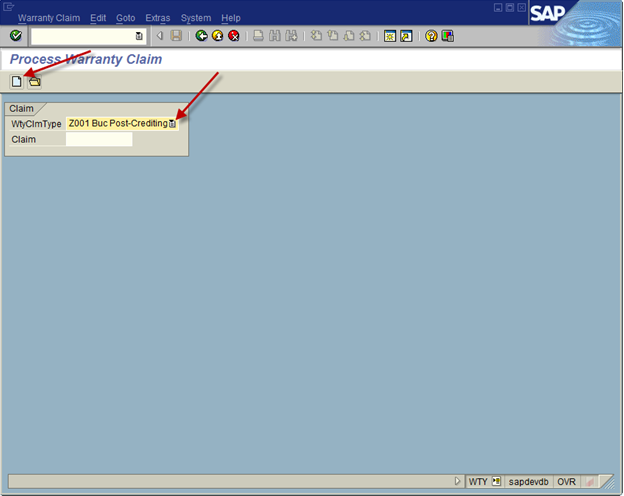
Now, everything starts with transaction WTY, so we head over there to create our sample claim.

blog01-01

Set the Claim Type: Z001

Press Create

blog01-02

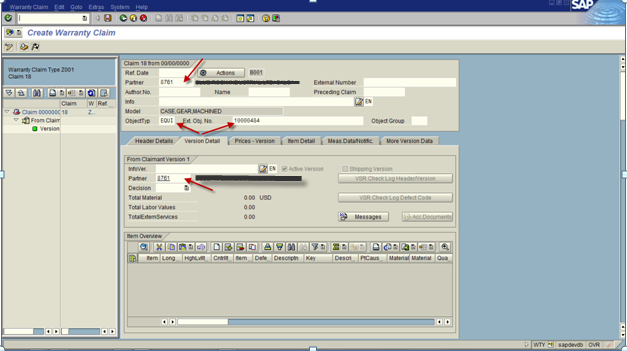
Now, everything is configurable, so these screen shots show exactly one possible setup.  So the information I suggest entering is one possible set of data that can be collected.  In this claim, it is based on an equipment record.  This example is a claim from a customer, and will be serviced by a vendor.

Header Information:
Enter in the Partner (claimant customer)
Object Type: EQUI (this is the header equipment)
Ext Obj. No: Equipment Number

Version Detail Tab
Partner: (Claimant Customer Number)

blog01-03

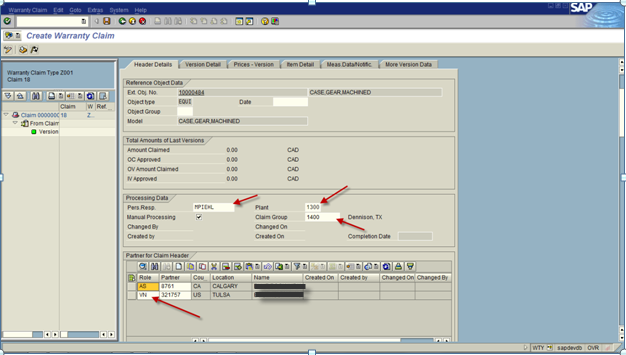
Header Detail Tab:

Person Resp: optional
Plant: will come in automatically
Claim Group (should be whomever will be the reimburser)
Partner Table Control: Add an entry for the Vendor (VN and vendor number)blog01-04

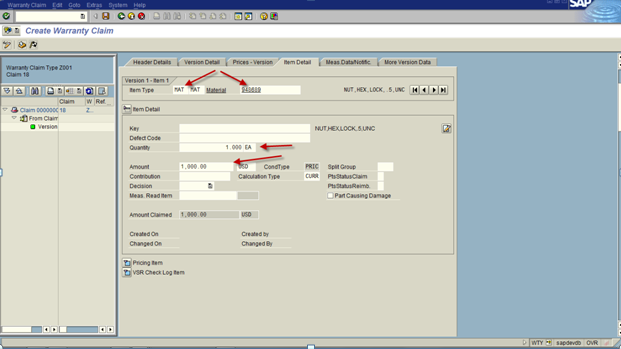
Item Detail Tab – this is the area where you enter in the material to repair or return:

Item Type: MAT
Material: The material that is being repaired/returned
Quantity:  1.000
Amount: this is the proposed amount of the claim.

blog01-05

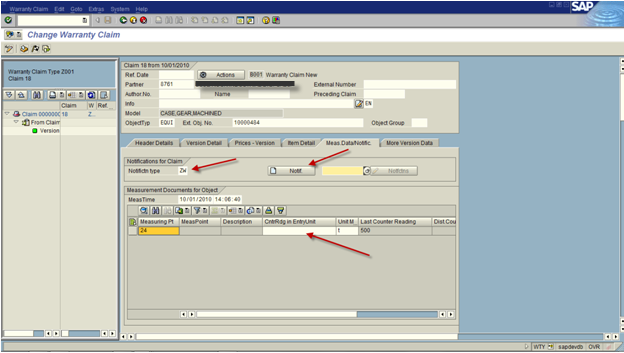
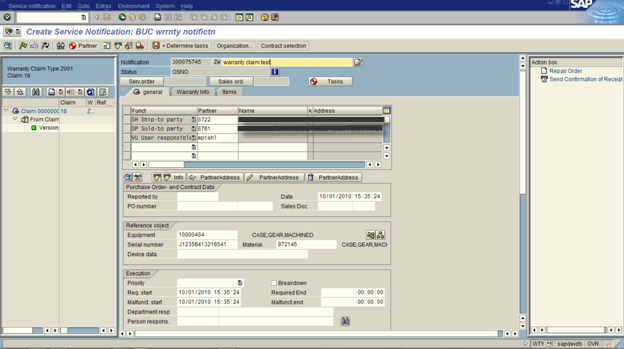
This next section gives you the opportunity to create a service notification connected to the claim. This is especially valuable if you use the return and repair process.
Notification Type:  ZW

Create Notification Button (this will replace IW51 or you can enter in an existing notification number)  If the header level equipment has a measuring point, you can enter in the measuring document.

blog01-06

Enter in the remaining information, and green arrow back.  (don’t create the repair sales order.  this is will be a separate step).

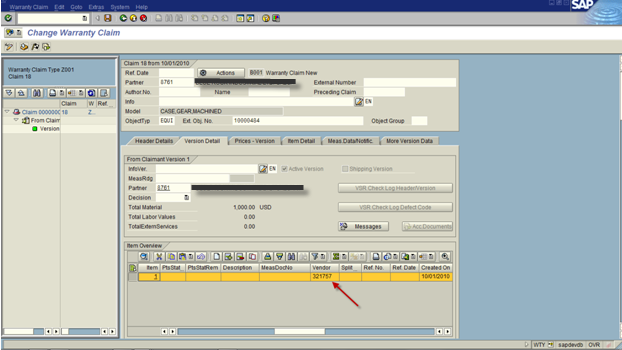
Next up, we get to revisit the VERSION DETAIL.
VERSION DETAIL Tab.

For each item that is under warranty: enter in the vendor number.

blog01-07

Save after entering in all of this information.

Now the notification can be processed as it normally it would.  After the part has been received and analyzed, you can continue processing the claim.

Update the amount to be claimed for the item (item detail tab).

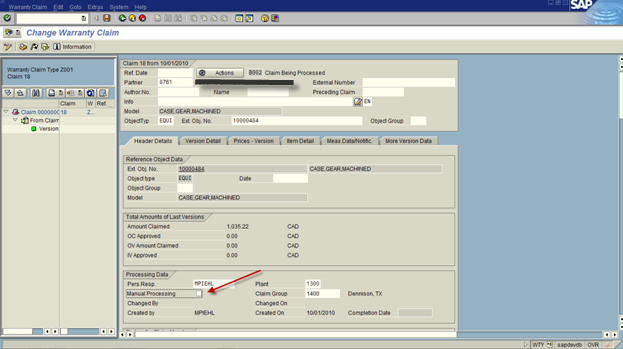
Currently the Claim will be at Status B002: claim being processed

blog01-08

Now, when you are ready to move to the next step of the claim, you need to move to the next status.
Uncheck the manual Processing check box.

Press the Actions button:

blog01-09

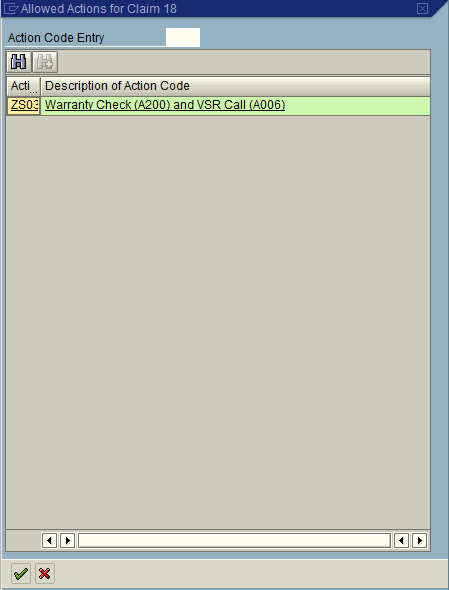
Select ZS03 and hit the green check.

If the top level equipment has a master warranty associated with it, then this screen will appear showing if the part is still under warranty/contract or not.

The notification will now be at B003: Claim Checked.

This bumps the status and allows you to create the next version of the claim, but we will save that for another post.
Thanks for reading,

Uncheck the manual Processing check box.

Press the Actions button:

Learning to Document

You know, for as long as I’ve been consulting, you’d think that documentation would be an easy task, but for me, it’s always come painfully.  This is mostly likely due to the fact that I hate documenting things.  Well I’m learning that often the things that are least interesting to do, are the most important.  Documentation is one of those things (damn! :> ).

Well, that brings me to some of the things that I’ve learned that can really help your documentation.  I thought I’d share some of things today.

1.  Use a lot of screenshots.  It sounds pretty obvious, but pictures really are a worth a 1000 words.  So get yourself a good screen capture program.  I personally use SnagIt, but anything that takes a screenshot, and allows you to add some arrows, text boxes etc will do the trick.

2.  Take things step by step.  If you really want to make sure someone knows how to do something, start at the beginning, and walk them through each little piece.  As soon as skip steps, you can lose your audience, and then your documentation isn’t worth anything.

3.  Use a real example.  Whenever possible, use something in the system that someone can look at.  For example, if it has to do with data, try to use something that is in the system that someone could look at again.  Often, allowing someone to be able to look at the data on their own terms can help solidify the information.  If you can’t, make sure you show your user how to look up your own data.

4.  Set the stage early on.  Start your documentation with a good overview.  Keep in mind that someone could be reading this document (hopefully) 3, 6 or 12 months down the road.  If you don’t explain what you’re doing well enough…  the documentation can quickly get “foggy”, even to you if you don’t do the steps often enough.

5.  A good title.  This little piece of advice might actually get this read.  It doesn’t matter how good the guts of your document are, if you don’t label it appropriately, no one will ever find it.  This includes being able to find it in a file system, like sharepoint, put it in a location that fits, use good directory names, etc.

Those are a couple tidbits that I’ve picked up that are helping my documentation get better.  Don’t get me wrong, I’m far from an expert, but I have been finding that my stuff is making more sense to me lately, so that’s a good start.  ha ha

Thanks for reading,

ABAP – Changing a Namespace

Well, once you finally get to the phase of creating a namespace and making yourself a program, inevitably, things change.  In my case, I joined forces with a partner, created a new company and started moving forward.  So, in order to keep things keep everything consistent, I had to generate some new namespaces.  The problem is that you can’t simply rename things for a new namespace, you have to copy each component to the new namespace, then delete the existing stuff.  Of course, the fun comes in the sequencing.

In order to start everything, I recommend using transaction SE80.  Since a namespace is generally associated with a package, the easiest way to pull everything for a particular package.  This will give you everything associated with the namespace.  Initially, you I suggest just copying everything.  For this piece, it doesn’t matter the sequence.

Once everything is copied, now is where the fun part begins.  Go back to the original namespace pull up all of the objects.  Typically I go through and start with the highest level objects.  This will include any programs, web dynpro objects or BSP objects.  For each object, do a where used to make sure it isn’t included anything else, if the where used list is empty, then I’ll delete the item.  Next I move to functions and function group.  Then I’ll move onto the data dictionary objects.  Starting again with the highest level tables and table types.  Then move down the chain to structures and finally data types.

It’s not a simple task, and can be rather tedious… but at the end of the day, you can move from one namespace to another with very little risk, and just a little bit of time.

Thanks for reading,

Warranty Claims – Partner Setup

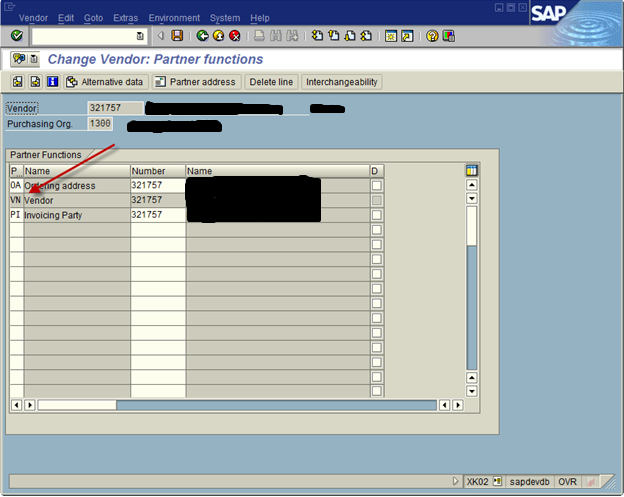
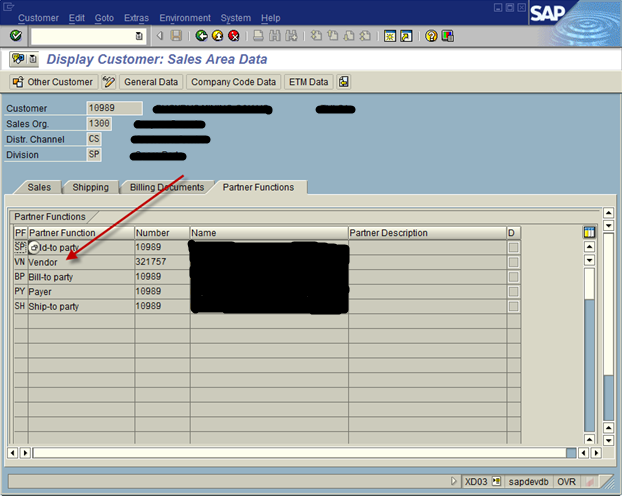
Well, when you start playing with warranty claims, you quickly find that it is very particular when it comes to partner setup.  Your customer and vendor both need to be have some particular settings in place in order for the partner to even be used in the warranty claim.  So I’m going to show you what you need to have in place.

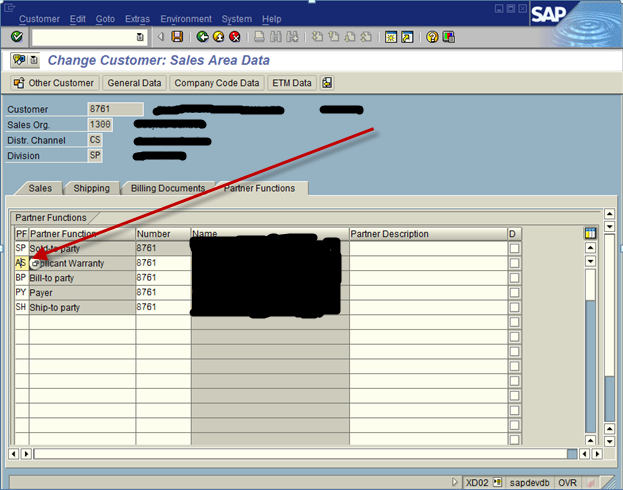
First, let’s begin with the customer master.  For any customer that you want to be a claimant, you must assign the appropriate partner type.  By default, it’s AS, but like most things in SAP, you can set it to what you want.
owty-01

Next up, the Reimbursing Vendor:

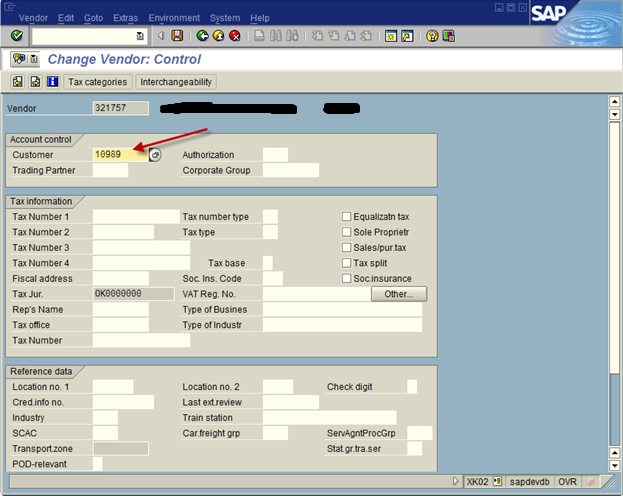
You need a customer (with at least Company code Data maintained) for each vendor that will be used for warranty claims processing.

Enter the corresponding customer here.  the customer must be a sold-to party:
owty-02

Be sure that the vendor partner is set up for the vendor master in the appropriate org.

owty-03

Vendor Customer:

Be sure that Tax jurisdiction is blank if the vendor will be used across multiple company codes.
Be sure the VN partner is attached to the customer.
owty-04

If you follow these simple rules, you’ll be in good shape, and will be able to attach your customer/vendor to the warranty claim.  If not, expect some issues when you attempt to do your first claim.

Thanks for reading,

Warranty Claims – Configuration – Define Warranty Claim Types

This step in warranty claims it the first real piece of the puzzle when it comes to defining the different warranty claim scenarios.  I will always encourage you to come to the define warranty claim types screen and create a custom claim type, and copy from the closest standard claim type.  SAP does a great job of providing multiple base claim types that will likely be close to your final needs.  For this coming example, I’m going to follow the postcrediting warranty claim types, and create a custom version.  If you aren’t sure which option to choose, check out my post on the basics of warrany claims to gain some insight.
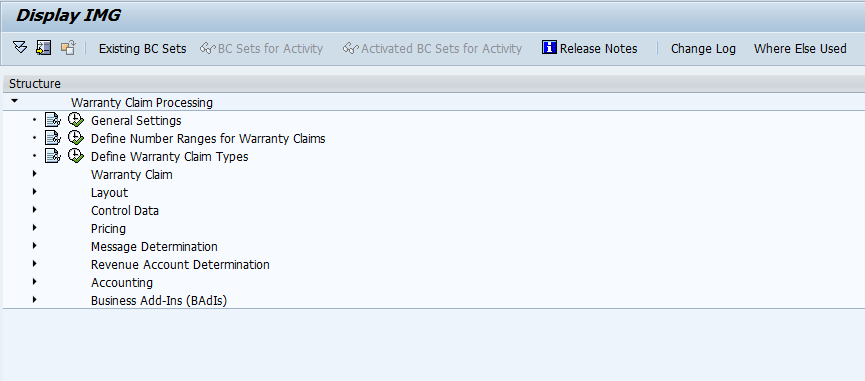
owty-01

Now, we start at the OWTY transaction to see all the configuration pieces.  We select Define Warranty Claim Types.
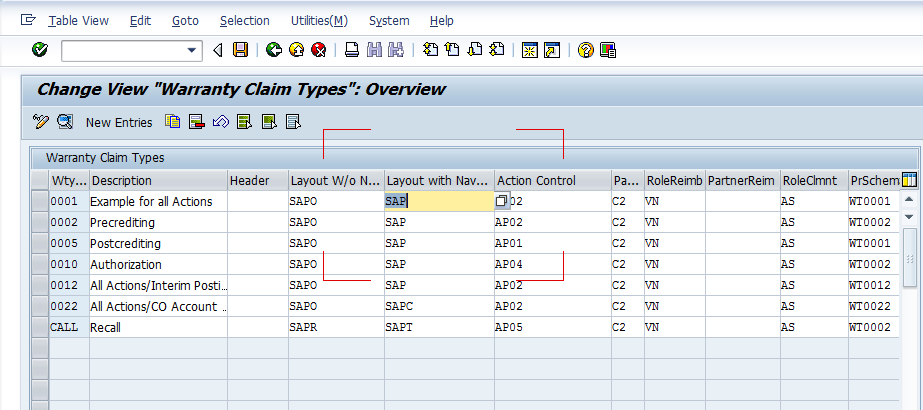
owty-02

By default, SAP provides multiple options to start with.  In fact, you might be able to use the out of the box options, but being the SAP purest, I always encourage you to create a ZXXX claim type.
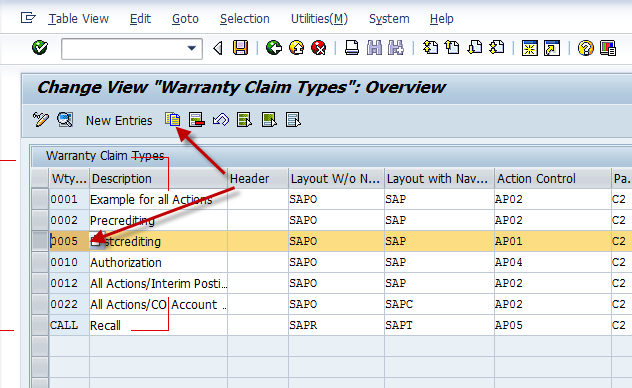
owty-03

So, highlight the option you want to copy, and press copy.  This will bring you to the Define Warranty Claim Types detail screen.
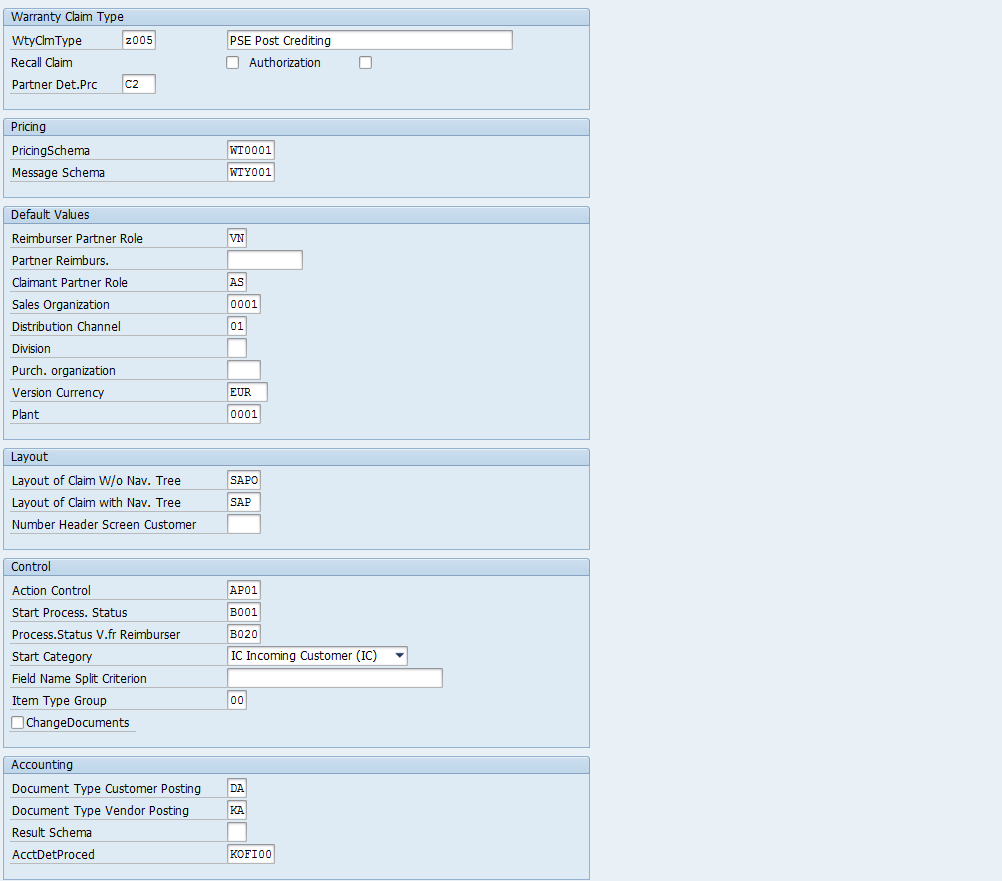
owty-04

Again, this is a busy screen.  there are a lot of fields, and most of them are vital to the workings of the claim.

Start with renaming the warranty Claim type, I selected Z005 for this example, and changed the description.  At this point, you can save and come back to these settings later, or update everything at once.  Now, onto everything else.

Recall Claim:  This sets this claim type as a recall.  A recall is a special subset for warranty claims.  In general, you can think of this as a defect in a product, and you want to create a bunch of claims all related to the same thing.  This is a recall.
Authorization:  Allows you to set this as applicable to authorization, WTYAUT transaction.  In future posts, I’ll talk about the actual execution of the claim and go into transactions like these.
Partner Det.Prc:  this like so many documents, allows you to set your own partner determination procedures.  This is very handy to determine what partners can and should be related.  Certain partners will be required no matter what, but we’ll get to those shortly.

Pricing
Pricing Schema: serves to determine specific prices for each warranty claim item and each warranty claim version and then to to post them to FI.  In short, this is your pricing procedure.
Message Schema: this is your output determination procedure.  Especially useful, since it’s likely you will have special documents, either printed or IDOC relevant to warranty claims.

Default Values
Reimburser Partner Role: This is a very important piece to notice here.  I’ll do a post soon that talks about this more detail, but you need a specific partner type for your reimburser, and it must have some additional settings within it to allow it to be part of a warranty claim.
Partner Reimburs.: this allows you to set a default vendor or reimburser for the claim type.  This is valuable if you always know who will be doing the work.
Claimant Partner Role: exactly like the Reimburser Partner Role.  This is typically a customer, but this must be a specific partner type that gets assigned to the customer.  I’ll go into this in a future post as well.
Sales Organization/Distribution Channel/Division/Purch organization/Plant:  These are all defaults.  So if your claim will only be used in a specific area, be sure to set it here.  You will get the option to enter this information within each claim if you need.
Version Currency:  self explanatory

Layout
The layout section is likely to be revamped as you better understand the flow of the warranty claim.  You have complete control of how the screen is laid out, and you can do it with or without a navigation tree.  We will discuss the Layout section in the future.
Layout of Claim w/o Nav. Tree:
Layout of Claim with Nav. Tree:
Number Header Screen Customer:  When using customer exit WTY00001, a customer-specific screen area is activated in the bottom of the header data area in the warranty claim by using this screen number. The customer-specific screen area can have a maximum of two lines without a frame or one line with a frame.

Control
This section, like layout, is something you should configure your own values for.  The control of the warranty claim is truly where the power resides in this technology.  We’ll discuss the control section of configuration in future posts.
Action Control: set the action control profile
Start Process. Status:  Based on your action control profile, you can define what status a claim should start at.
Process.Status v.fr Reimburser:  Based on your action control profile, you can define what status a claim should start at.
Start Category:  should the claim start with IC, OC, IV or OV
Field Name Split Criterion:  If the claim can split, what field will determine how to split it.
Item Type Group:  assigned to the warranty claim using the claim type. This means that only specific item types are allowed in a claim type and/or specific item types are excluded from a claim type.
Change Documents:  this field I’m always a huge advocate of.  In all instances, I encourage this field checked.  Unless you’re really concerned with a change table, it can only benefit you to be able to see exactly how and when each change occurred.

Accounting
Document Type Customer Posting:  The document type that you enter here is the document type for the warranty credit memo that is sent to the claimant. The claimant is the debtor in warranty processing. You define document types in Customizing for Warranty Processing under Accounting –> Define Document Types .
Document Type Vendor Posting:  The documet type that you enter here is the document type for the warranty debit memo that is sent to the reimburser. The reimburser is the creditor in warranty processing.
Result Schema:  This is for PA transfer.  This is outside of my expertise, so always, talk to your FICO expert when filling in this field.
AcctDetProced:  this is your account determination procedure.  If you’re not sure, talk to your SD/FICO expert for guidance.

Now, that’s the define warranty claim types step in configuration.  You will likely revisit this step in configuration if you following the configuration order listed in OWTY.  I’ll talk about what you should configure first in the future.

Thanks fore reading 🙂
Posts navigation

1 2 3 63 64 65 66 67 68 69 97 98 99
Scroll to top